
Set connection options on this computer
Connection options control how ArkhiNet logs in and talks to a device from your computer: the username, the SSH key file, what Backspace sends and, for serial consoles, the line settings. Each engineer sets their own.
Set defaults for every device
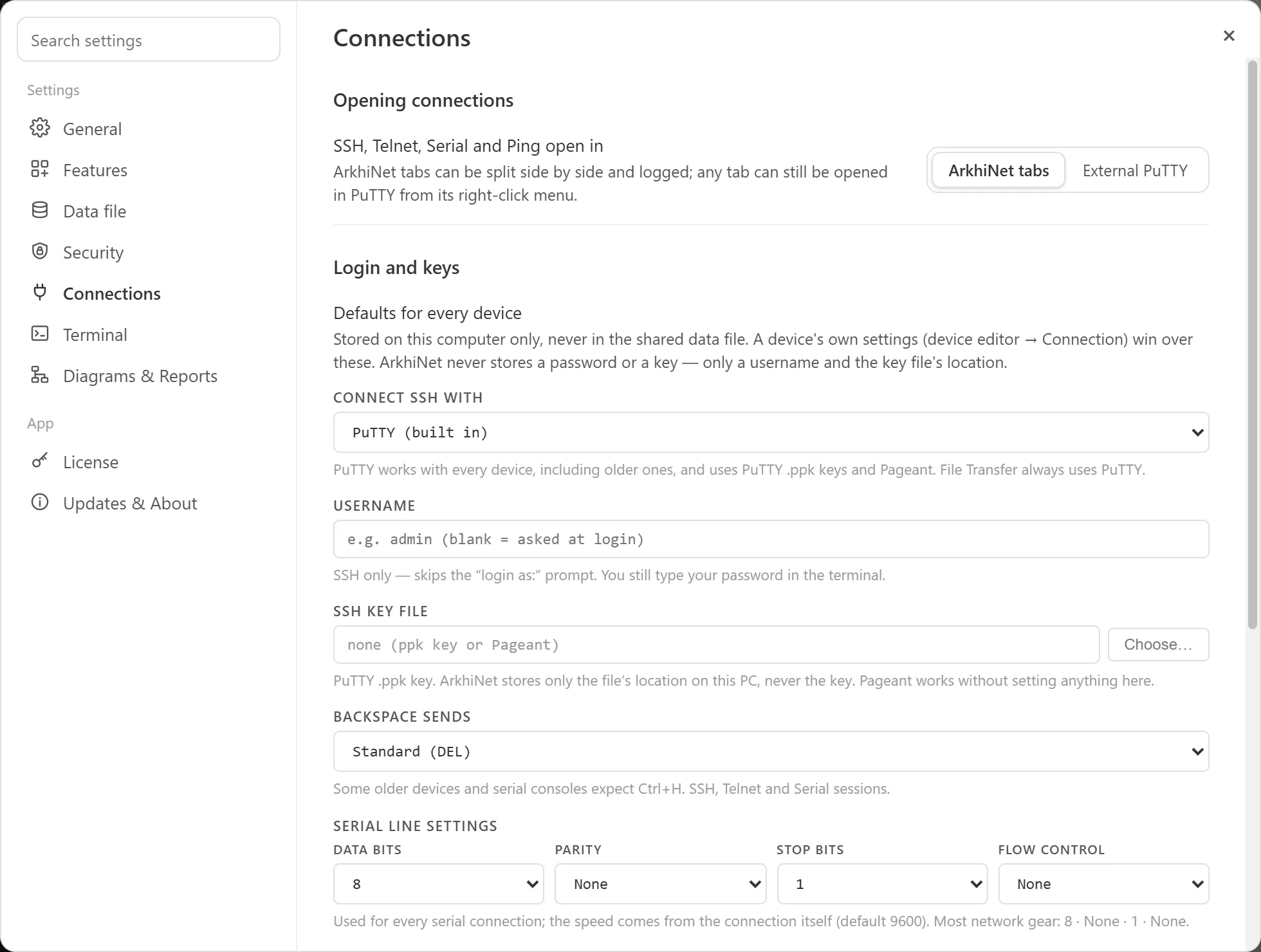
Section titled “Set defaults for every device”- Open Settings (the gear icon, or Ctrl+,) and click Connections.
- Under Login and keys, fill in the fields you need:
- USERNAME: sent for SSH logins, so you skip the “login as:” prompt. Leave it blank to be asked each time.
- SSH KEY FILE: click Choose… and pick a PuTTY
.ppkfile. Clear removes it. If you use Pageant, you don’t need to set anything here. - BACKSPACE SENDS: Standard (DEL) or Ctrl+H. Some older devices and serial consoles expect Ctrl+H. This applies to SSH, Telnet and Serial sessions.
- SERIAL LINE SETTINGS: Data bits, Parity, Stop bits and Flow control, used for every serial connection. Most network gear uses 8, None, 1, None. The speed comes from the connection itself (default 9600).
Changes save as you make them.
Set options for one device
Section titled “Set options for one device”A device’s own settings win over the defaults.
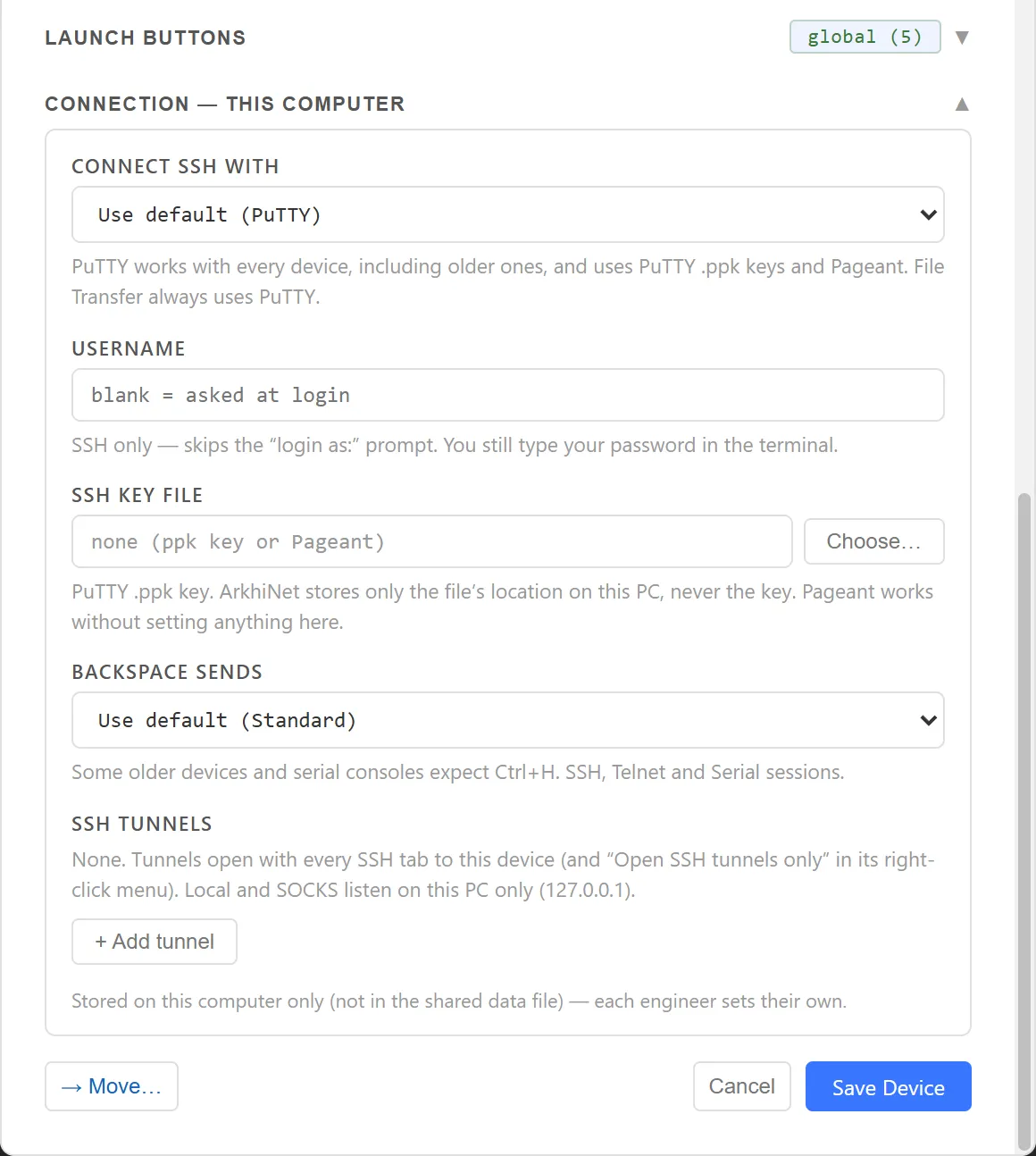
- In the sidebar, right-click the device, for example NWL-HQ-FW01, and click Edit.
- Click the CONNECTION section for this computer to expand it.
- Set USERNAME, SSH KEY FILE or BACKSPACE SENDS. Blank fields show the default they fall back to, such as “default: admin”. Use default in a drop-down follows your Settings.
- Click Save Device.
For a device you’re adding, save it first, then edit it to set its connection options.
The same section holds the device’s SSH tunnels. See SSH tunnels.
Use Windows OpenSSH instead of PuTTY
Section titled “Use Windows OpenSSH instead of PuTTY”ArkhiNet connects SSH with its bundled PuTTY by default. If Windows’ own OpenSSH client is installed (C:\Windows\System32\OpenSSH\ssh.exe), you can choose it instead, as the default or per device.
- For every device: in Settings, Connections, set CONNECT SSH WITH to OpenSSH (Windows).
- For one device: in the device editor’s CONNECTION section, set CONNECT SSH WITH to OpenSSH (Windows), then click Save Device.
With OpenSSH you get your ~/.ssh/config (jump hosts and aliases), OpenSSH keys and ssh-agent. It keeps its own known_hosts, separate from PuTTY’s host-key cache. The .ppk key file setting isn’t used.
CONNECT SSH WITH doesn’t appear when OpenSSH isn’t installed. Telnet, Serial and File Transfer always use PuTTY, and some older devices only work with PuTTY.
Open sessions in PuTTY instead of tabs
Section titled “Open sessions in PuTTY instead of tabs”ArkhiNet opens SSH, Telnet and Serial in its own tabs. To use separate PuTTY windows instead:
- Open Settings, Connections.
- Under Opening connections, set SSH, Telnet, Serial and Ping open in to External PuTTY.
ArkhiNet uses the PuTTY that ships with it, so there’s nothing to install. Your username, key file, serial settings and tunnels still apply.
To open just one session in PuTTY, right-click its tab or pane header and click Open in PuTTY ↗. This works for SSH, Telnet and Serial sessions, whichever mode you use.
Open a device in WinSCP
Section titled “Open a device in WinSCP”If WinSCP is installed, ArkhiNet offers it for SSH devices. ArkhiNet doesn’t include WinSCP.
- Right-click the device in the sidebar and click Open in WinSCP, or right-click an SSH tab or pane header and click Open in WinSCP ↗.
- WinSCP opens and connects to the device with the username and
.ppkkey file from your connection options.
ArkhiNet opens most devices over SFTP, and FortiGate and Cisco models over SCP, because they don’t offer SFTP.