
Save and reopen tabs
A saved tab remembers a tab’s split layout and what runs in each pane. Set up a tab the way you like it once, for example the IP / DNS / MAC Lookup, Port / Net Scan and Subnet Calculator tools side by side, or the two Northwind Logistics HQ firewalls next to each other, and bring it back with one click. Saved tabs arrived in 4.9.5.
Save a tab
Section titled “Save a tab”- Arrange the tab: split it and open the tools, shells or sessions you want. See Tabs and split panes.
- Right-click the tab and click Save tab….
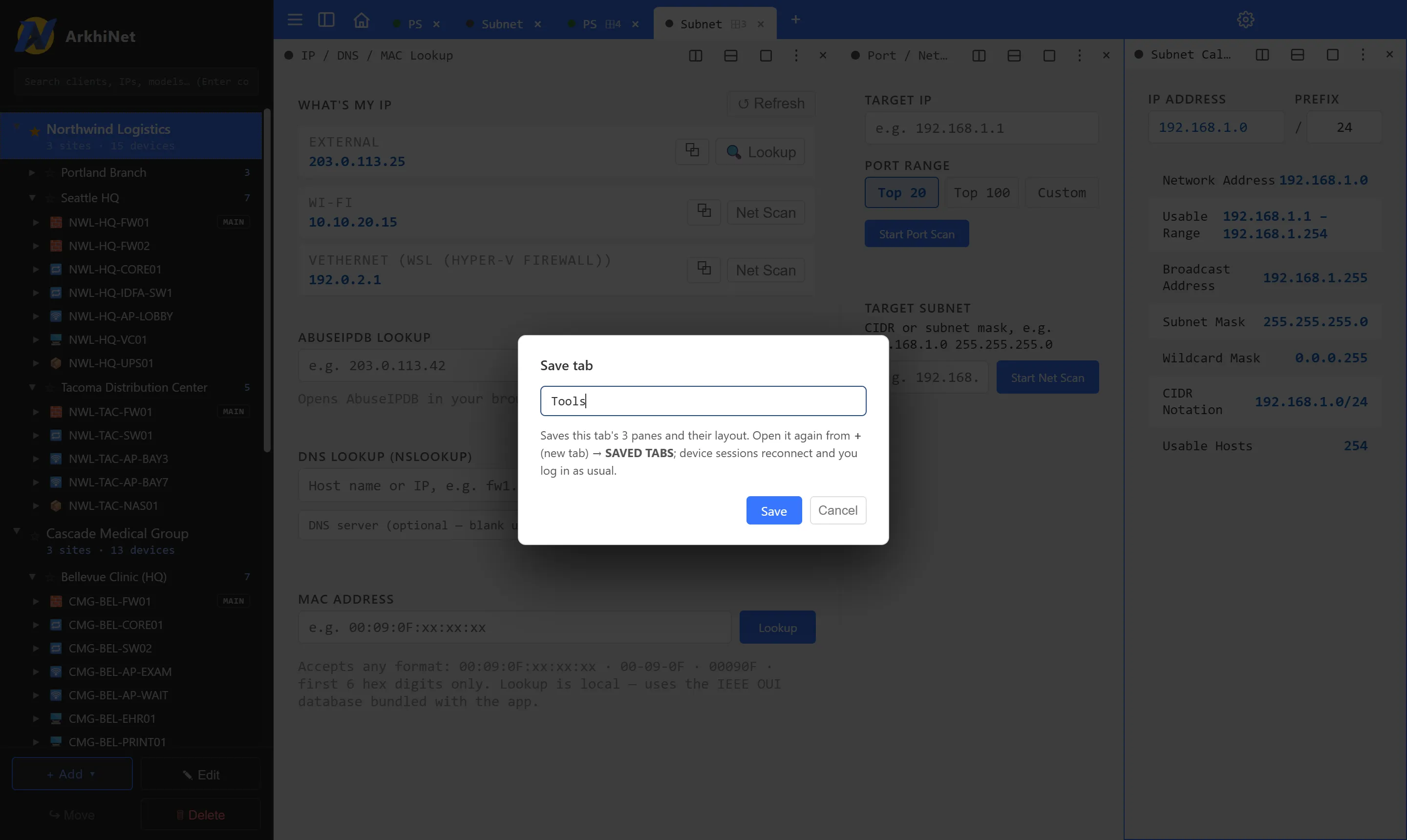
- Type a name, for example
Tools, and click Save.
The dialog says how many panes it saves, and warns you about any that will come back empty. A confirmation then tells you where to find the saved tab.
If a saved tab with that name already exists, the dialog says so and the button changes to Replace “name”.
Open a saved tab
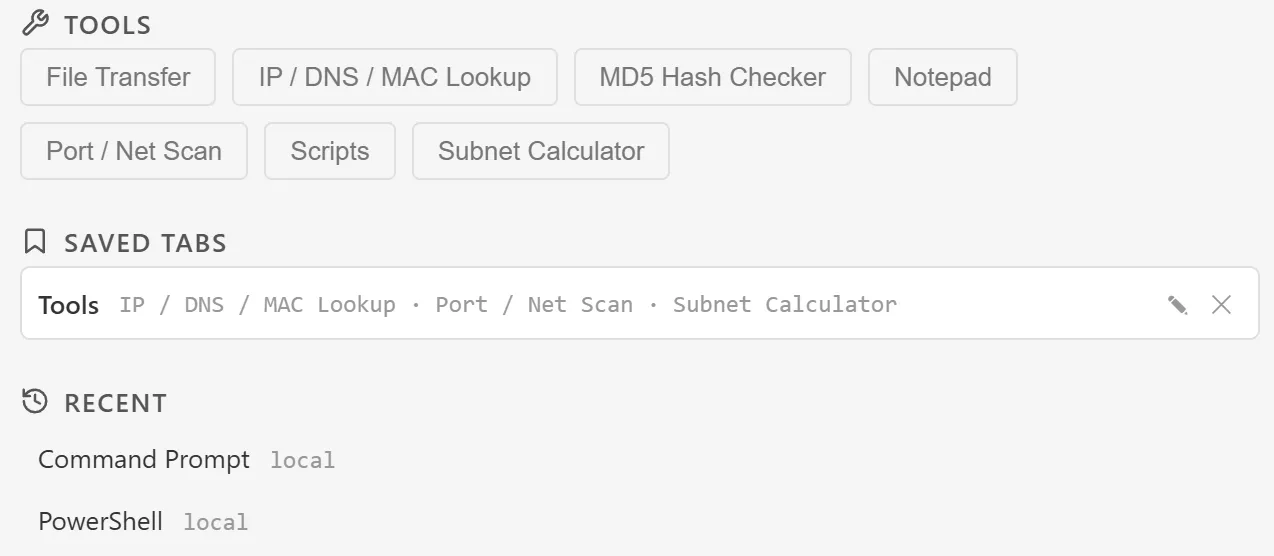
Section titled “Open a saved tab”- Click + or press Ctrl+T to open the new-tab screen.
- Under SAVED TABS, below TOOLS, click the saved tab. Hover it to see what each pane holds.
The saved tab opens in place of the empty tab, with its name as the tab label. Every pane starts: tools appear, local shells start, and device sessions connect. You log in to each device as usual, because nothing secret is saved.
Update a saved tab
Section titled “Update a saved tab”A tab opened from a saved one keeps the link to it.
- Change the tab, for example add a pane.
- Right-click the tab and click Update saved tab “name”.
To keep the original and save the changed layout separately, click Save as a new saved tab… instead and give it a new name.
Rename or delete a saved tab
Section titled “Rename or delete a saved tab”On the new-tab screen, under SAVED TABS:
- Click ✎, type the new name and click Rename.
- Click ✕, then Delete to confirm, or Keep to cancel.
What a saved tab keeps
Section titled “What a saved tab keeps”A saved tab keeps the split layout, up to four panes and their sizes, and for each pane:
- A tool from the new-tab screen, such as Subnet Calculator or Scripts.
- A local shell, such as PowerShell or WSL.
- An inventory device session, stored as a link to the device and interface plus the port. The device name and IP are read from your inventory when you open the tab, so edits to the device carry over.
- A host you typed into quick connect, with its username, but only while your data file isn’t encrypted.
These come back as empty panes: Notepad files, compare views, File Transfer, ping, file transfers and tunnels-only tabs. If a device was deleted from your inventory since you saved the tab, its pane opens empty and a notice tells you.
Saved tabs are stored on this computer only, not in the shared data file. You can keep up to 30.