
IP / DNS / MAC Lookup
IP / DNS / MAC Lookup puts four quick checks in one tab: your own IP addresses, an AbuseIPDB lookup, a DNS lookup that does the job of nslookup, and a MAC vendor lookup. It’s the tab to keep open when you’re troubleshooting a site’s connectivity or working out what an unknown device is.
Open IP / DNS / MAC Lookup
Section titled “Open IP / DNS / MAC Lookup”- Click + in the tab strip, or press Ctrl+T, to open the new-tab screen.
- Under TOOLS, click IP / DNS / MAC Lookup.
The tool opens in its own tab, labeled Lookup. You can also pick it from the TOOLS section of any empty pane after you split a tab.
See your IP addresses
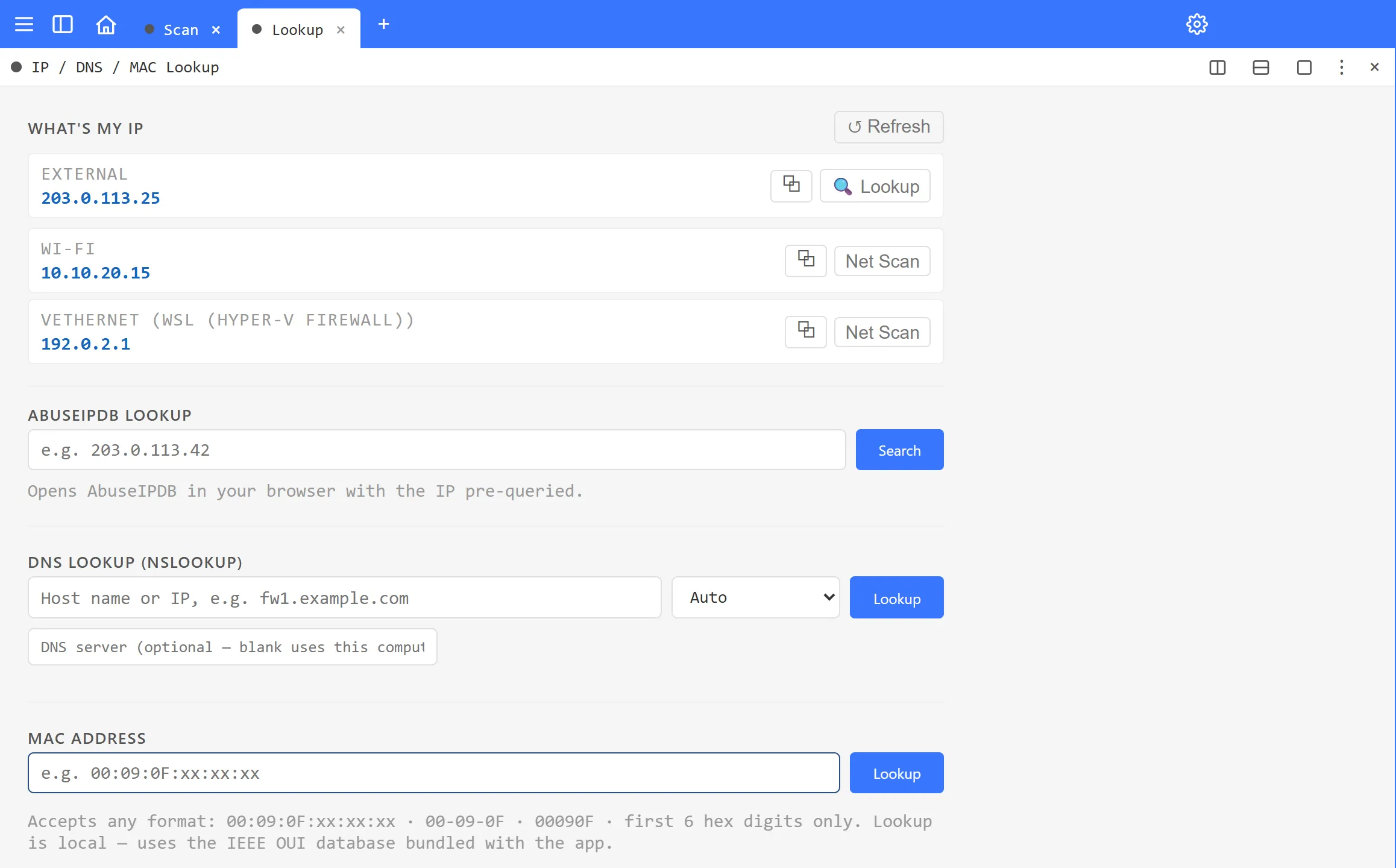
Section titled “See your IP addresses”The WHAT’S MY IP section fills in as soon as the tool opens:
- EXTERNAL is your public IP address, the one the internet sees. ArkhiNet gets it by asking a public IP-echo service over HTTPS, so this is the one part of the tool that contacts an outside service on its own. If the lookup fails, it shows unavailable.
- Below it, each of this computer’s network interfaces is listed by name with its IPv4 address.
Use the buttons on each row:
- ⧉ copies the address.
- 🔍 Lookup (external address only) checks it on AbuseIPDB.
- Net Scan (interfaces only) switches this pane to Port / Net Scan and starts scanning that interface’s subnet right away.
Click ↺ Refresh to read the addresses again, for example after you connect a VPN or move to another network.
Check an IP on AbuseIPDB
Section titled “Check an IP on AbuseIPDB”- Under ABUSEIPDB LOOKUP, type the address, for example an IP that keeps showing up in a firewall’s deny log.
- Click Search, or press Enter.
ArkhiNet opens AbuseIPDB’s page for that IP in your default browser. The check itself happens on AbuseIPDB’s website, not inside ArkhiNet.
Look up DNS records
Section titled “Look up DNS records”The DNS LOOKUP (NSLOOKUP) section answers the same questions as nslookup, without leaving ArkhiNet.
- Type a host name or an IP address, for example
fw1.example.com. - Choose a record type from the list:
- Auto, the default: a name returns its CNAME, A and AAAA records; an IP address returns its name (a reverse lookup).
- A, AAAA, CNAME, MX, TXT, NS or SOA for that record type only.
- PTR (reverse) for a reverse lookup.
- Optionally, type a DNS server’s IP address in the box below. Leave it blank to use this computer’s own DNS servers, as Windows reports them.
- Click Lookup, or press Enter.
The results list each record’s type and value, with ⧉ to copy a value, and show which DNS server answered. Querying a specific server is useful for checking a customer’s internal DNS, or for comparing what an internal and a public resolver return for the same name.
If the lookup fails, ArkhiNet says why in plain words, for example that the name doesn’t exist, that it has no records of that type, or that the server didn’t answer.
Find a MAC address’s vendor
Section titled “Find a MAC address’s vendor”- Under MAC ADDRESS, type the address. Any common format works:
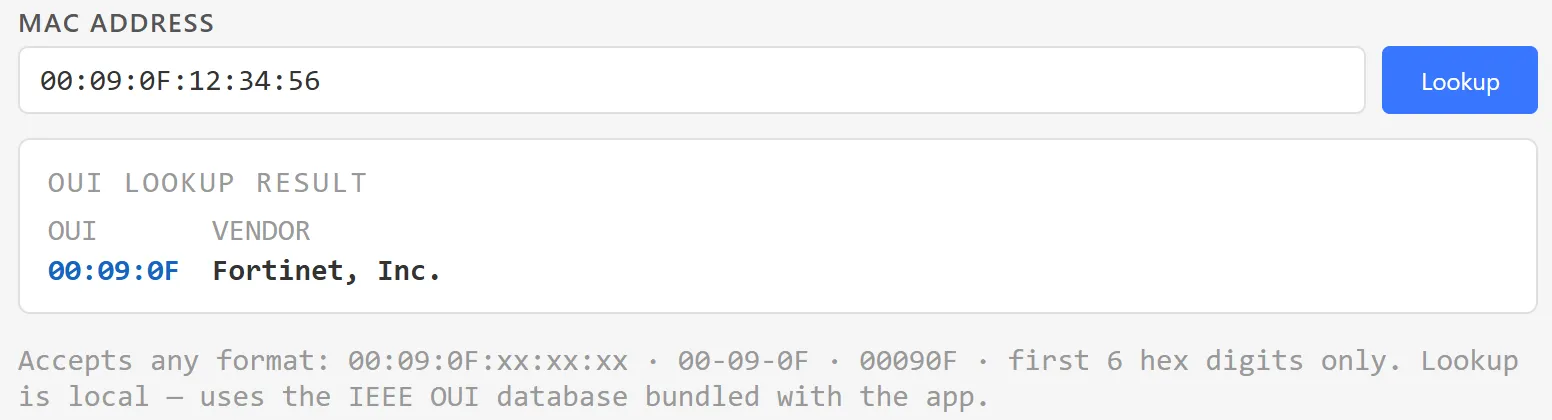
00:09:0F:12:34:56,00-09-0F-12-34-56,0009.0F12.3456, or just the first six hex digits,00090F. - Click Lookup, or press Enter.
The OUI LOOKUP RESULT shows the OUI, the first three bytes, and the VENDOR registered for it. For example, 00:09:0F is Fortinet.
The lookup is local: ArkhiNet checks the address against a copy of the IEEE OUI database that ships with the app, so nothing is sent anywhere. If the OUI isn’t in the database, the tool says so. That usually means a locally administered address, such as a randomized MAC on a phone or laptop, or a vendor block newer than the bundled database.
Related tools
Section titled “Related tools”- Port / Net Scan to sweep a subnet and identify devices.
- Subnet Calculator for masks and ranges.