
Share a data file with your team
Several engineers can work from the same inventory by pointing ArkhiNet at one data file in a shared location. ArkhiNet checks the file for changes made by others, merges edits that don’t overlap, and asks you only when two people changed the same thing.
Each engineer keeps their own settings, theme, logins and backups on their own computer. Only the inventory is shared. See Where your data lives.
Put the data file in a shared location
Section titled “Put the data file in a shared location”The first engineer moves the file to the shared location:
- Pick a folder everyone can reach: a network share (for example
\\fileserver\netops\ArkhiNet) or a shared OneDrive folder that’s synced to each engineer’s PC. - In ArkhiNet, click ☰, then File, then Save Data File As… (with the Home tab active), and save into that folder. The scripts file goes along with it, and ArkhiNet switches to the new copy.
Each other engineer then opens it:
- Open Settings (⚙ or Ctrl+,) and click Data file.
- Next to Inventory file, click Change File… and pick the shared file. On a new install, choose Open Existing File on the first-launch screen instead.
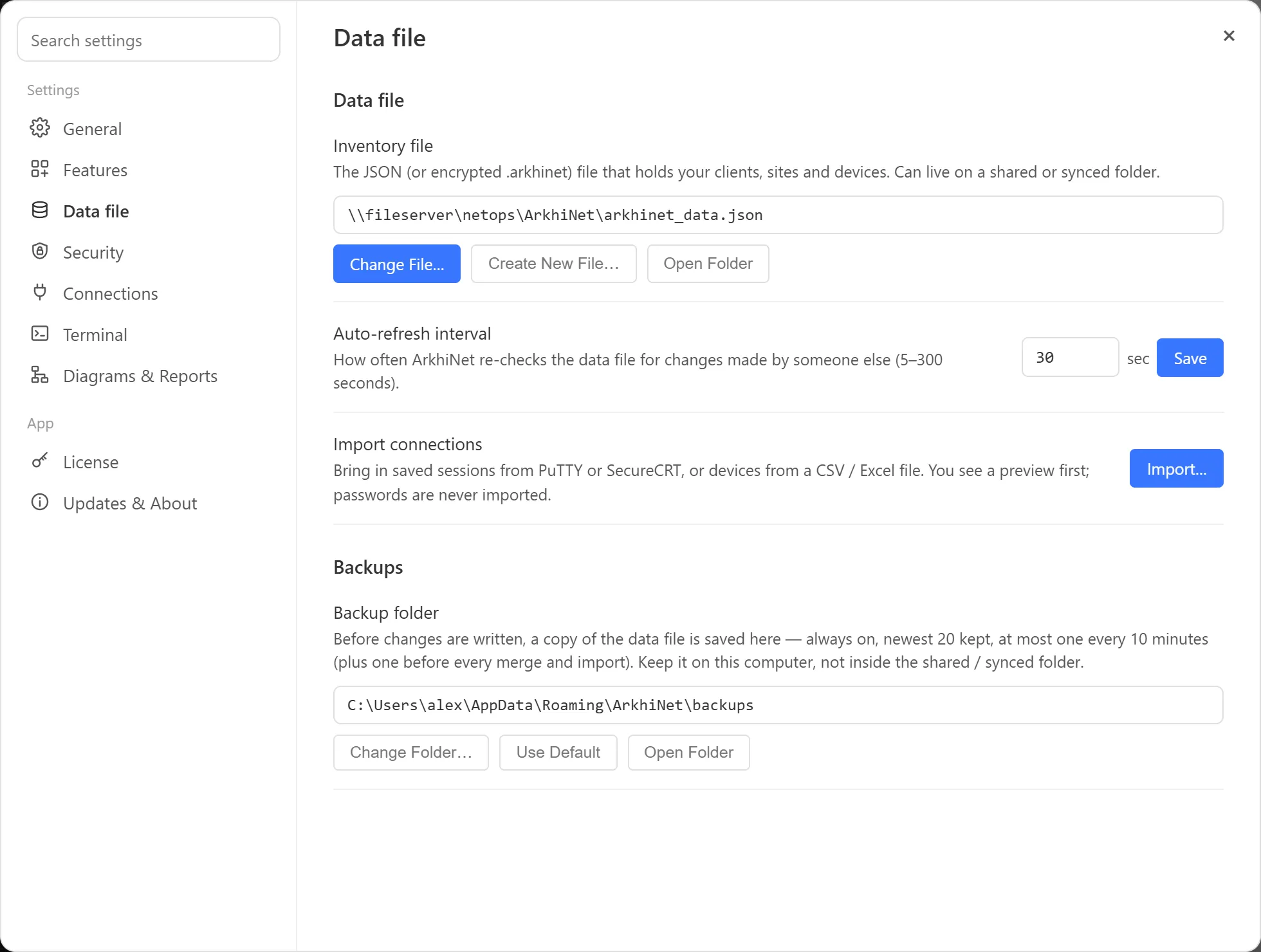
Keep each engineer’s backup folder on their own computer (the default), not inside the shared folder.
Auto-refresh
Section titled “Auto-refresh”ArkhiNet re-checks the data file at a set interval and loads changes made by someone else.
- When you have no unsaved edits, it loads the new version and briefly shows ↺ Updated from shared file.
- When you’re in the middle of an edit, it doesn’t touch your work. A banner warns that the data was updated by someone else and suggests you save soon. Your next save is merged with their changes.
To change how often it checks:
- Open Settings and click Data file.
- Set Auto-refresh interval to between 5 and 300 seconds. The default is 30.
- Click Save.
A shorter interval shows coworkers’ changes sooner. On a slow share or a synced folder, a longer interval is gentler.
When two people save
Section titled “When two people save”Before every save, ArkhiNet checks whether the file changed since you last loaded it. If it did, it compares three versions: the one you started from, yours, and the one on disk. It goes client by client and, inside a client both of you changed, site by site.
- Only one of you changed something: that change wins. Your edits and theirs are combined, and you see ↺ Auto-merged with coworker’s changes.
- Someone deleted something the other didn’t touch: the deletion stands.
- One of you deleted something the other edited: the edit wins, so content is never silently thrown away.
- You both changed the same site, or the same client’s details: that’s a real conflict, and ArkhiNet asks you what to do.
ArkhiNet always backs up the file before it writes a merge. See Automatic backups.
Resolve a save conflict
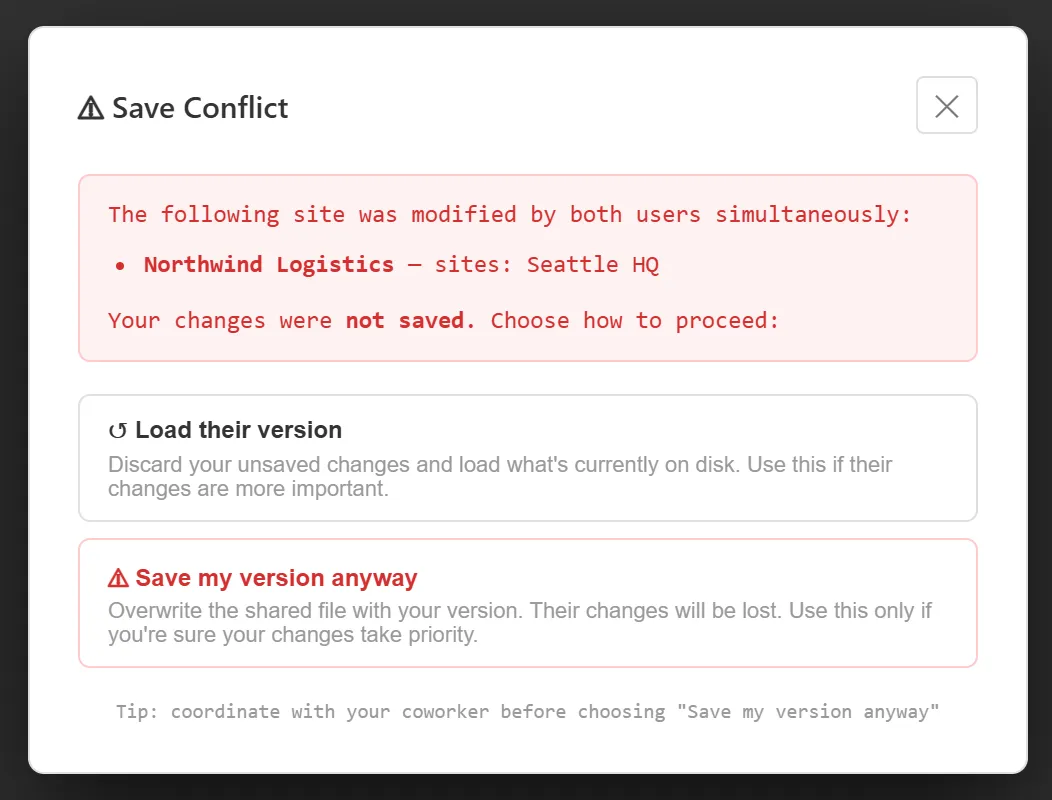
Section titled “Resolve a save conflict”When ArkhiNet can’t merge the two versions, the ⚠ Save Conflict dialog opens. It lists the clients and sites that both of you changed, and says your changes were not saved. You have two choices:
- ↺ Load their version discards your unsaved changes and loads what’s on disk. Use it when their changes matter more, then redo your edit.
- ⚠ Save my version anyway overwrites the shared file with your version, and their changes are lost. ArkhiNet backs up their version first, so you can get it back if needed. See Restore a backup.
Tips for working on one file
Section titled “Tips for working on one file”- Save often. Small, frequent saves merge cleanly. Long editing sessions are more likely to collide.
- Split the work by client or site where you can. Edits to different sites never conflict.
- Keep everyone on the same version of ArkhiNet. If someone on a newer version saves the file in a newer format, older versions can’t save to it until they update. See Files from a newer ArkhiNet.