
Import from PuTTY, SecureCRT or a spreadsheet
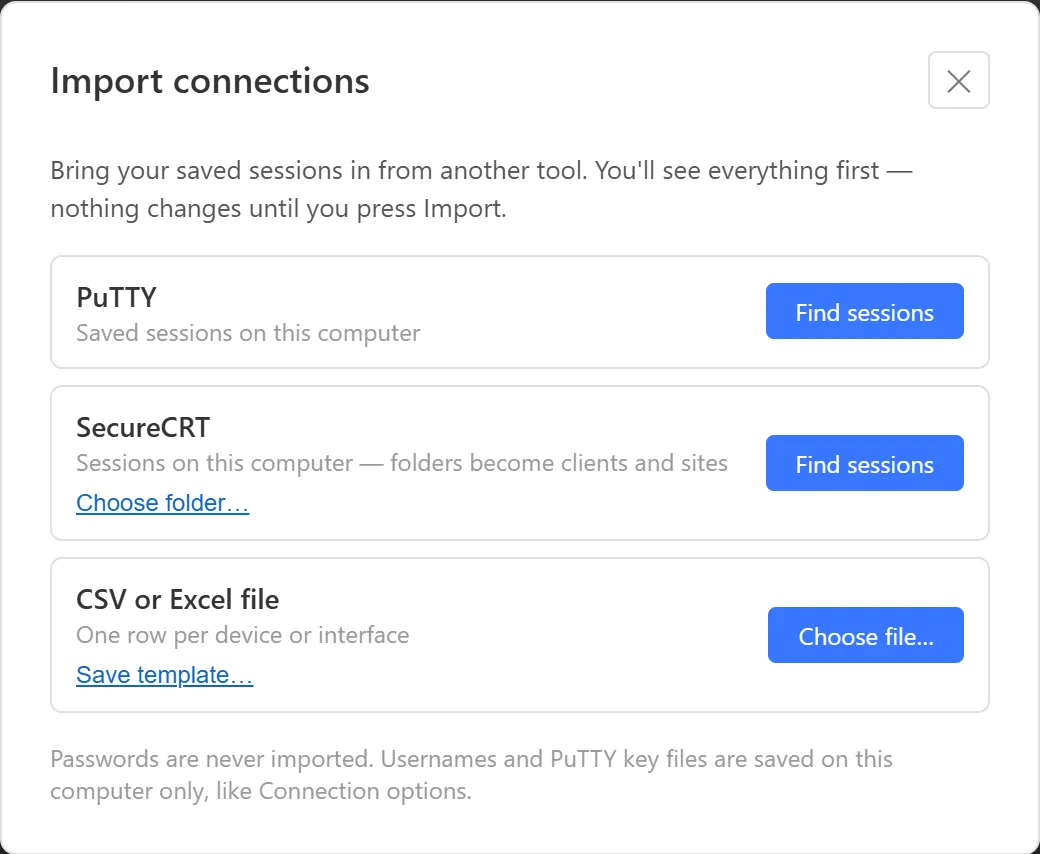
If your devices already live in PuTTY, SecureCRT or a spreadsheet, import them instead of retyping them. You always see a preview first, and nothing changes until you click Import.
Open the importer
Section titled “Open the importer”Any of these opens Import connections (a data file must be open):
- ☰ → File → Import Connections…
- Settings → Data file → Import connections → Import…
- In an inventory with no devices yet, the sidebar link Import from PuTTY, SecureCRT or a CSV…
Import from PuTTY
Section titled “Import from PuTTY”ArkhiNet reads the saved sessions in this computer’s PuTTY settings (your Windows user’s registry).
- Next to PuTTY, click Find sessions.
- Review the preview (see Review the preview), then click Import.
SSH and Telnet sessions are imported. Serial sessions are listed but can’t be imported (open those from quick connect instead), and other session types are listed as not supported. A host written as admin@10.10.1.1 is split into the username and the host.
If a session points to a PuTTY .ppk key file, ArkhiNet keeps that path only if the file is a usable .ppk key.
Import from SecureCRT
Section titled “Import from SecureCRT”- Next to SecureCRT, click Find sessions. ArkhiNet looks for SecureCRT’s Sessions folder on this computer.
- If it isn’t found, or you keep sessions somewhere else, click Choose folder… and pick the Sessions folder.
- Review the preview, then click Import.
SecureCRT folders become clients and sites: the first folder level is the client, and any deeper folders are joined with “ / “ into the site name. SecureCRT key files are not imported.
Import from a CSV or Excel file
Section titled “Import from a CSV or Excel file”- Next to CSV or Excel file, click Save template… to save
arkhinet-import-template.csvwith the columns and example rows. - Fill it in, one row per device or per interface, and save it as
.csvor.xlsx. - Click Choose file… and pick your file.
- Review the preview, then click Import.
The template columns are:
Client, Site, Device, Interface, Host, Role, Protocol, Port, Username, Model, Firmware, Serial, Type, Tags, Notes
- The first row must be the column names. Only Host is required. Common alternatives are recognized, for example IP Address or Hostname for Host, and Customer or Company for Client.
- Rows with the same Client, Site and Device become one device with several interfaces.
- Protocol can be
ssh,telnet,rdp,httporhttps. Blank means SSH. - Fill in Port only when it isn’t the protocol’s default.
- Role is one of
wan,lan,dmz,mgmt,ha,loopbackorother. Blank means MGMT. - Type is one of
firewall,router,switch,ap,serverorother. - Separate several Tags with commas, semicolons or
|. - Leave Client and Site blank to send those rows to the destination you pick in the preview.
CSV files separated by commas, semicolons or tabs all work. For Excel files, only the first sheet is read.
Example rows for a branch firewall with two interfaces:
Client,Site,Device,Interface,Host,Role,Protocol,Port,Username,Model,Firmware,Serial,Type,Tags,NotesNorthwind Logistics,Portland Branch,NWL-PDX-FW01,wan1,203.0.113.88,wan,ssh,,,FortiGate 40F,,,firewall,,Northwind Logistics,Portland Branch,NWL-PDX-FW01,internal,10.30.1.1,lan,ssh,,,FortiGate 40F,,,firewall,,Review the preview
Section titled “Review the preview”The preview lists every device found, with columns for NAME, HOST, TYPE, USER and GOES TO (the client and site it will land in).
- Checkboxes pick what to bring in. Use Select all or Select none to change everything at once.
- Duplicates are left unchecked. A device whose host is already anywhere in your inventory is marked Already in inventory, so importing the same source twice doesn’t create copies. Tick it if you really want it.
- Rows that can’t be imported are grayed out with the reason, for example a serial session or a host with characters ArkhiNet can’t use.
- Warnings below the list explain anything ignored, such as a password column or an invalid port.
Split “Client - Device” names
Section titled “Split “Client - Device” names”Many people name PuTTY sessions like Northwind Logistics - NWL-TAC-FW01. When at least two names follow that pattern, the preview offers a checkbox to use the part before “ - “ as the client. It starts ticked; untick it to keep the full names as device names.
Choose a destination
Section titled “Choose a destination”Devices that don’t carry their own client (PuTTY sessions whose names aren’t split, SecureCRT sessions outside any folder, and spreadsheet rows with no Client) go where you choose under PUT DEVICES WITHOUT A CLIENT IN:
- New client, named “Imported from PuTTY” (or the tool or file name) by default. If a client with that name exists, it is reused.
- Existing client, plus a site if that client has more than one.
What the import does
Section titled “What the import does”When you click Import (the button shows the count, for example Import 12 devices):
- ArkhiNet saves a backup of your data file first, every time.
- It adds the checked devices, creating any new clients and sites.
- A device on a non-default port gets its own Launch Buttons, with that port first. Telnet and RDP sessions get their own button.
- Usernames and PuTTY key file paths are saved on this computer only, in the same place as a device’s connection options. They never go into the shared data file, and they never replace connection options a device already has.
The last screen summarizes what was added. To reorganize afterward, right-click a device and choose Move….