Compare two files or configs
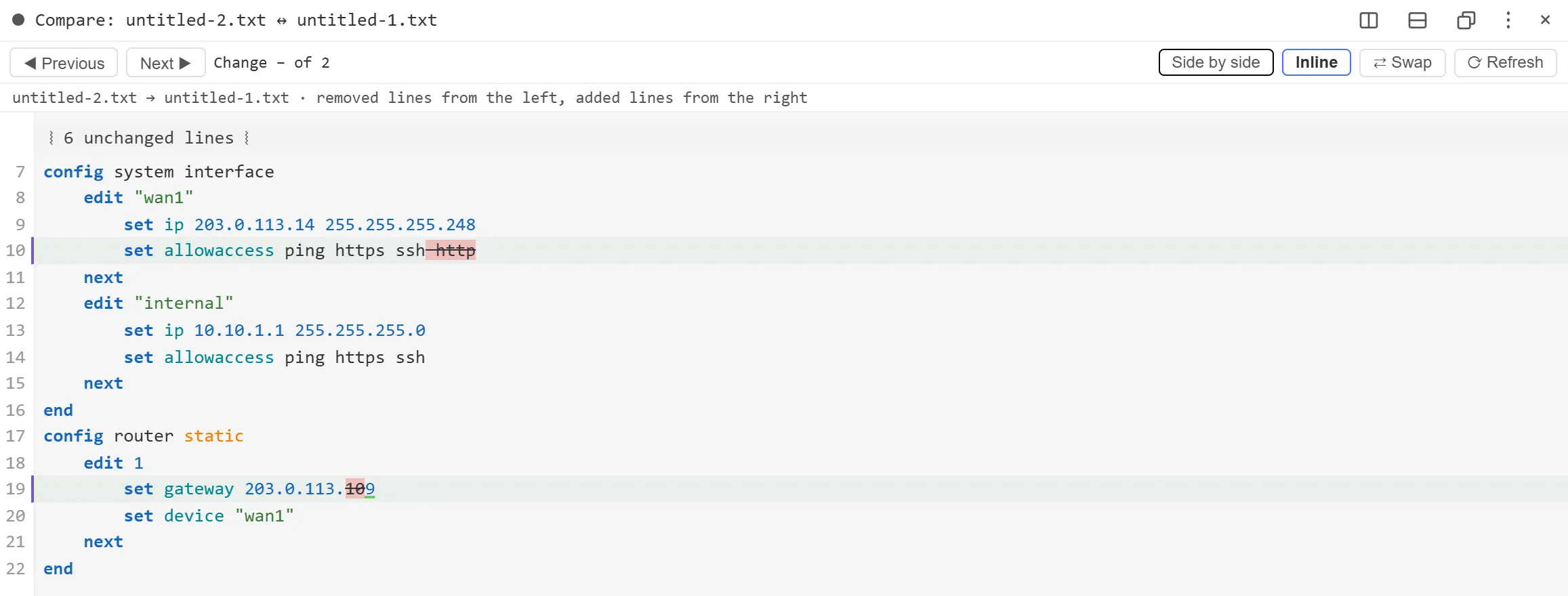
Compare (added in 4.5.0) shows the differences between two texts: two config backups, a backup and the current config, or a file and something you copied. It opens as a read-only diff in a Workbench tab, side by side or inline, with changed words highlighted and long unchanged stretches collapsed.
Compare two files on disk
Section titled “Compare two files on disk”- Open a new tab with + or Ctrl+T.
- Under TOOLS, click Notepad, then Compare files….
- In the first Windows dialog, pick the first (original) file.
- In the second dialog, pick the file to compare it with.
The original is on the left and the second file on the right.
Compare an open Notepad tab
Section titled “Compare an open Notepad tab”- Open the file in Notepad.
- Right-click its tab and point to Compare with. The same menu is in ☰, File.
- Pick what to compare it with:
- File… to choose a file on disk.
- Clipboard to compare with the text you last copied.
- The name of another open Notepad tab.
The Notepad tab is the left side.
Compare two device configs
Section titled “Compare two device configs”A typical job: check what changed on a FortiGate since your last backup.
- Download a fresh backup with Quick transfer, for example
sys_configfrom NWL-HQ-FW01. - In Notepad, open last month’s backup of the same firewall.
- Right-click its tab, point to Compare with, click File…, and pick the fresh download.
- Press F7 to step through each change.
You can also compare live output without saving anything. Run show full-configuration on one device, right-click the terminal tab and click Open output in editor. Do the same on the second device, then use Compare with and pick the first tab. This works well for an HA pair like NWL-HQ-FW01 and NWL-HQ-FW02.
Read the diff
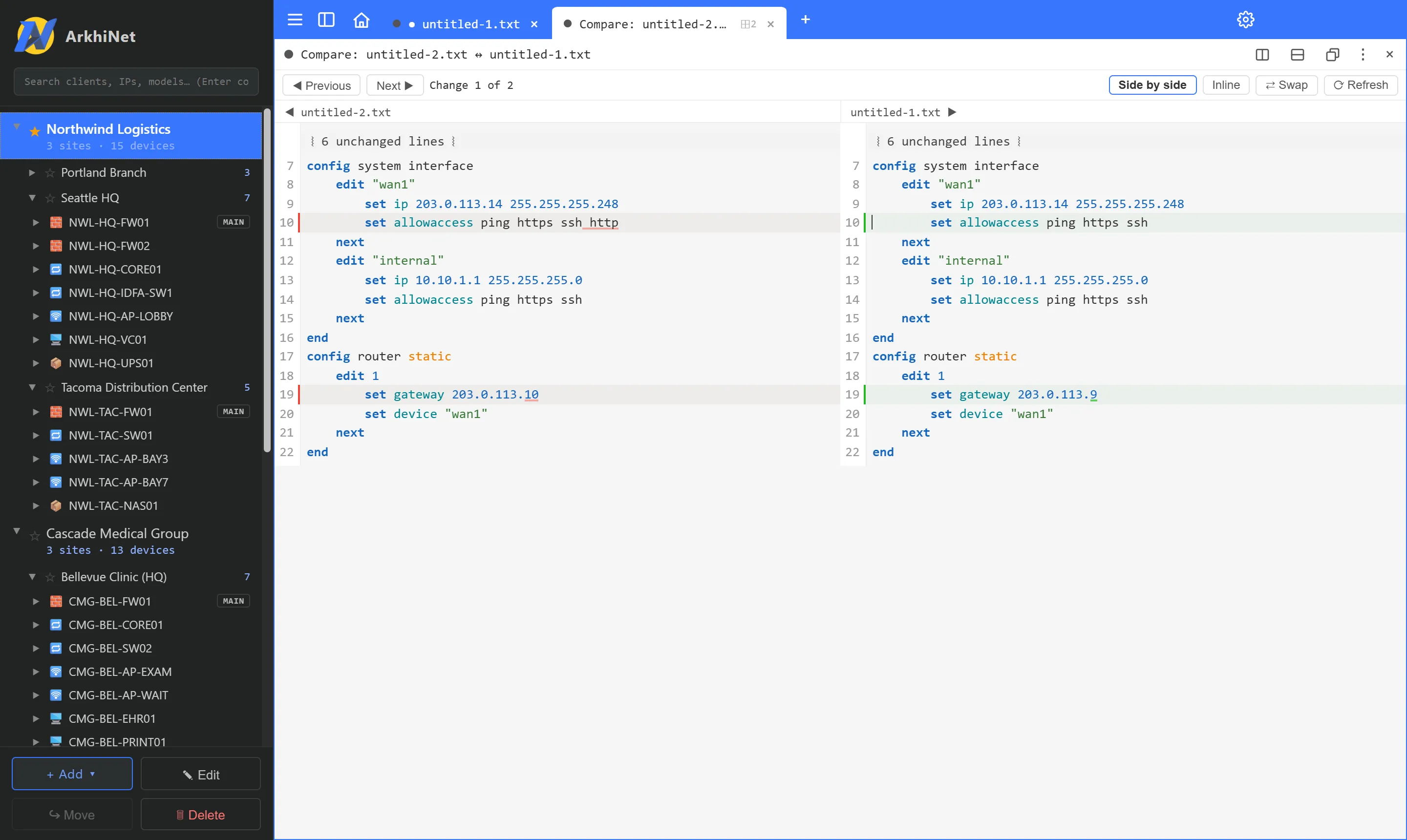
Section titled “Read the diff”The toolbar across the top has:
- ◀ Previous and Next ▶ to move between changes (Shift+F7 and F7), with a counter such as Change 3 of 12, or No differences.
- Side by side for two columns, or Inline for one column with the removed lines from the left and the added lines from the right together.
- ⇄ Swap to swap the two sides.
- ⟳ Refresh to re-read the sides that are open Notepad tabs.
If the two texts are very different, ≈ approximate appears: the diff is still shown, but it’s a best effort.
The view is read-only. You can still select and copy text from either side. The same FortiOS and Cisco IOS highlighting as Notepad is applied.