
Where your data lives
ArkhiNet keeps your inventory in one data file that you choose, and its settings in a separate file on each computer. Knowing which is which helps when you back up, share or move your setup.
The data file
Section titled “The data file”Your clients, sites, devices, topology diagrams, projects and notes all live in one file. You decide where it goes:
- a local folder on this PC
- a network share, so your team can use the same file
- a synced folder such as OneDrive
It’s a JSON file (.json), or .arkhinet once you encrypt it. New files are named arkhinet_data.json by default.
Your scripts library is kept in a second file next to it, with the same base name: arkhinet_data.scripts.json (or .scripts.arkhinet when encrypted). Keep the two files together. If you move or copy the data file by hand, move or copy the scripts file too.
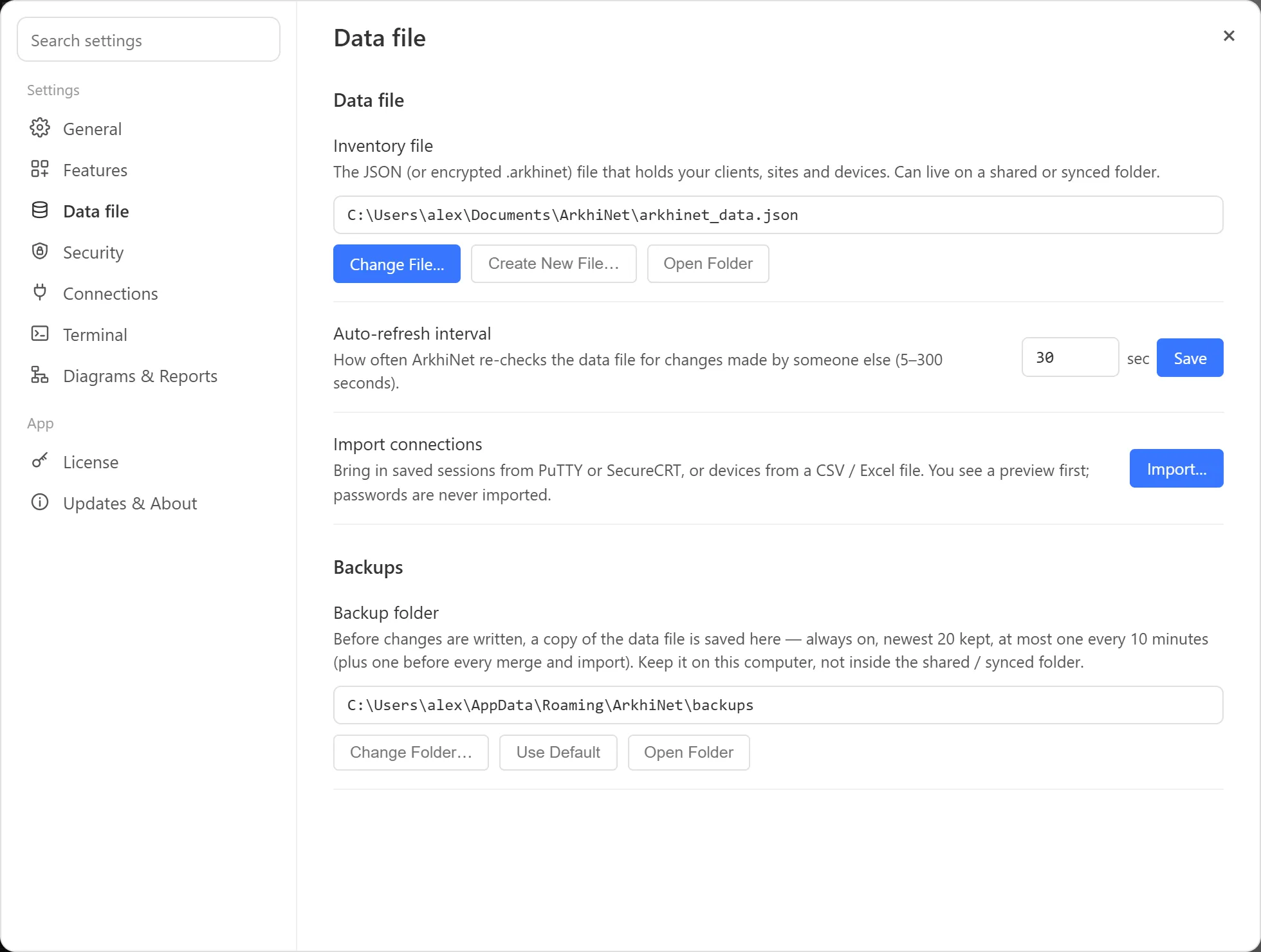
To see or change which file ArkhiNet uses, open Settings (⚙ or Ctrl+,) and click Data file. The Inventory file row shows the path, with Change File…, Create New File… and Open Folder.
You can do the same from ☰, then File, while the Home tab is active: Open Data File…, New Data File…, Save Data File As…, Open Data File Folder and Copy Data File Path. Save Data File As… writes a copy in a new place, brings the scripts file along, and switches ArkhiNet to the new copy.
Settings stay on each computer
Section titled “Settings stay on each computer”Everything that’s personal or specific to one PC is kept in %APPDATA%\ArkhiNet\config.json, never in the data file. That includes:
- which data file to open, and the backup folder
- your theme, custom themes and terminal colors
- usernames and key file paths for logging in (see How ArkhiNet handles credentials)
- your favorites, terminal and Notepad preferences, saved tabs and engineer name
- your license key, if you have one
So two engineers sharing one data file each keep their own look, logins and preferences.
Automatic backups
Section titled “Automatic backups”Before ArkhiNet writes a change to the data file, it copies the file to a backup folder. This is always on.
- The newest 20 backups are kept. Older ones are removed automatically.
- To keep the list useful, ArkhiNet makes at most one backup every 10 minutes, plus one before every merge with a coworker’s changes and before every import.
- Backups are named by date and time, for example
arkhinet_2026-10-14_09-32-05.json. An encrypted file’s backups stay encrypted. - The scripts file has its own backups in the same folder (
arkhinet-scripts_…), also the newest 20.
The default folder is %APPDATA%\ArkhiNet\backups. To change it, go to Settings, Data file, Backups, then click Change Folder… next to Backup folder. Use Default puts it back, and Open Folder opens it in Explorer.
Restore a backup
Section titled “Restore a backup”There’s no restore command. To restore, you open a copy of a backup as your data file, so your current file is left alone until you decide.
- In Settings, Data file, click Open Folder next to Backup folder.
- Find the backup from before the change you want to undo, by its date and time. Copy it to another folder, not the backup folder itself, and give it a clear name, such as
arkhinet_data-restored.json. - Back in Data file, click Change File… and pick the copy. ☰, File, Open Data File… does the same.
- Check that the inventory looks right.
- Keep working from the copy, or close ArkhiNet, replace your original data file with it, and open the original again.
If the backup is encrypted, ArkhiNet asks for the passphrase that was active when the backup was made, or your recovery code.
Files from a newer ArkhiNet
Section titled “Files from a newer ArkhiNet”If a coworker on a newer version of ArkhiNet saved the data file in a newer format, your version won’t open it or write to it, so it can’t damage data it doesn’t understand. You’ll see This data file needs a newer ArkhiNet, with Check for updates and Open a different file…. The file isn’t changed.
If this happens while you’re working, a banner tells you, and changes you make can’t be saved until you update.
Move to a new PC
Section titled “Move to a new PC”- On the old PC, if you have a Team license, open Settings, License, and click Deactivate this computer. See Activate a Team license.
- If you use a custom theme, export it on the old PC with Export… under Settings, General, Your themes. See Share a theme.
- If your data file is local, copy it and its
.scripts.json(or.scripts.arkhinet) file to the new PC, keeping them in the same folder, or put them on a share both can reach. A file that already lives on a share or synced folder needs no copying. - Install ArkhiNet on the new PC. On first launch, pick a setup, then choose Open Existing File and select the data file. If ArkhiNet is already set up there, use ☰, File, Open Data File….
- Set up your per-computer settings again: theme (use Import… for an exported custom theme), level names, features, default Launch Buttons, favorites, saved tabs, login usernames and key files, backup folder, and your license key.
Also on the new PC:
- If the file is encrypted, you need its passphrase. A remembered passphrase doesn’t move with you, because it’s tied to the old PC’s Windows account. Turn Remember on this computer on again if you want it.
- PuTTY asks you to confirm each device’s host key again the first time you connect.