
Send scripts and commands to terminals
The scripts library holds reusable command snippets, such as adding a VLAN or pulling a config backup. You send a script, or any text from Notepad, to a terminal through a preview that shows exactly what will be typed. Mirroring goes the other way: what you type in one pane goes to every terminal in the tab.
Where scripts are stored
Section titled “Where scripts are stored”Scripts live in a file next to your data file, with the same name plus .scripts.json (or .scripts.arkhinet when the data file is encrypted, sealed with the same key). Everyone who opens the data file sees the same scripts.
If two engineers edit the same script at once, both versions are kept: yours under the script’s name, and theirs as a copy named “name (engineer’s version)”. Deleting a script that someone else just edited leaves it in place.
Open the scripts library
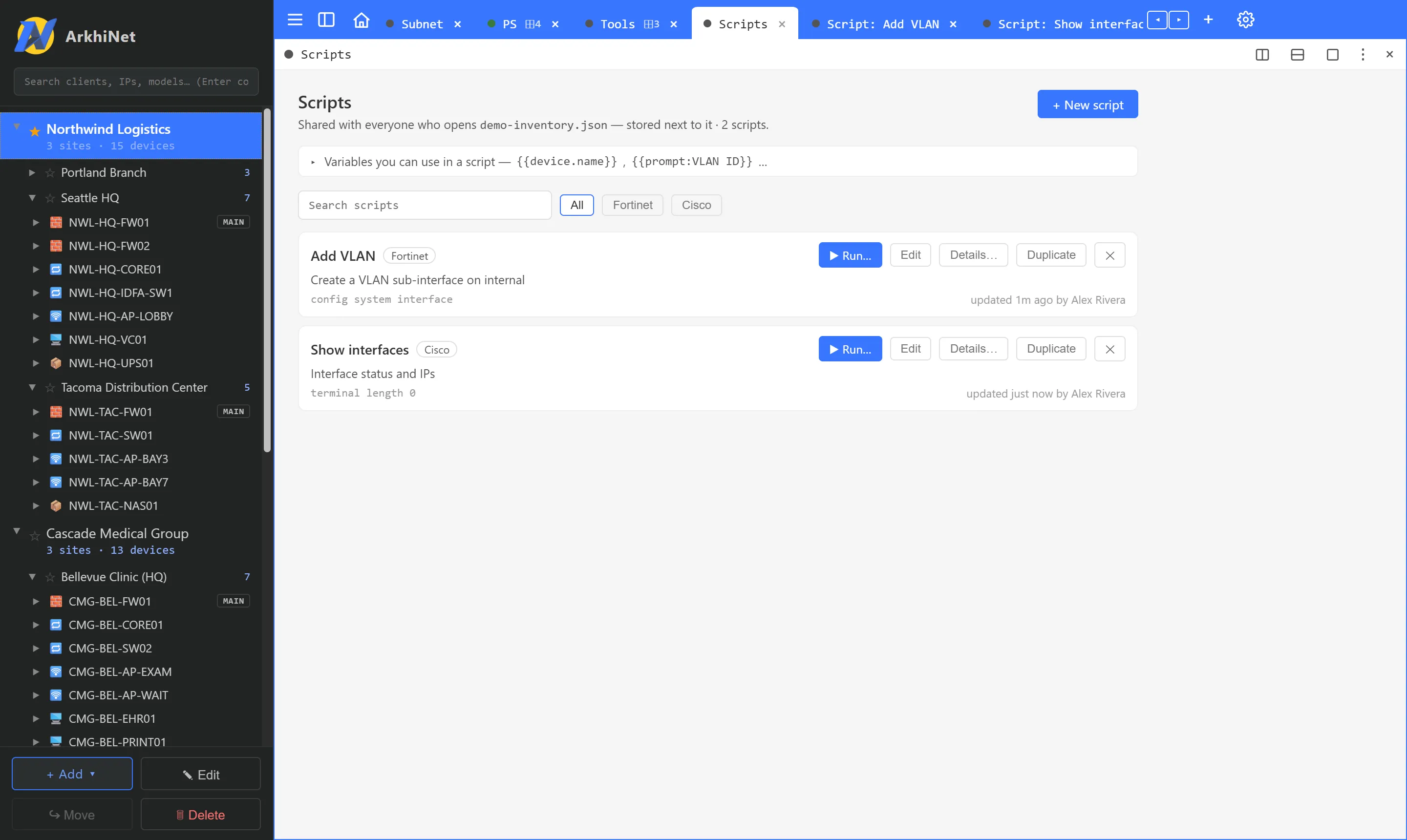
Section titled “Open the scripts library”Open the new-tab screen (+ or Ctrl+T) and click Scripts under TOOLS. From a live terminal you can also right-click the tab and choose Run script, then All scripts….
The library has a search box and vendor filter chips. Each script has ▶ Run…, Edit, Details…, Duplicate and ✕ (delete, after Delete for everyone?).
Create a script
Section titled “Create a script”- In the library, click + New script.
- Fill in NAME, an optional DESCRIPTION, and under FOR pick the vendors it applies to. Pick none for any device.
- Under SEND, keep By terminal type or choose Always line by line or Always paste all at once.
- Click Create and edit. The script opens in a Notepad tab named “Script: name”.
- Type the commands and press Ctrl+S to save them to the library.
To turn existing text into a script, select it in a Notepad tab, right-click the tab and click Save as script…. With nothing selected, the whole file becomes the script.
Use variables
Section titled “Use variables”Put variables in double braces. ArkhiNet fills them in the send preview from the device of the terminal you’re sending to.
| Variable | Value |
|---|---|
{{device.name}}, {{device.model}}, {{device.firmware}}, {{device.serial}}, {{device.type}} |
From the device’s inventory record |
{{device.ip}} |
The address this terminal is connected to |
{{iface.wan1}} |
The IP of the interface named wan1 (use any interface name) |
{{client.name}}, {{site.name}} |
The device’s client and site |
{{date}}, {{time}} |
Today (YYYY-MM-DD) and now (HH:MM) |
{{engineer}} |
Your Engineer name from Settings, General |
{{prompt:VLAN ID}} |
Asked when you send |
{{prompt:VLAN ID|10}} |
Asked, pre-filled with 10 |
For example, set hostname {{device.name}} on NWL-HQ-FW01 becomes set hostname NWL-HQ-FW01.
Device values only fill in when the terminal was opened from your inventory. A session from a typed host gets only prompts, {{device.ip}}, the date, time and engineer. Any variable without a value shows in red and blocks the send, so a literal {{...}} never reaches a device. There are no password variables.
Send to a terminal
Section titled “Send to a terminal”- Start a send in one of these ways:
- In the library, click ▶ Run… on a script.
- On a live terminal, right-click the tab, point to Run script and pick a script. Scripts for that device’s vendor, and untagged ones, are listed first.
- In a Notepad tab, select text and press Ctrl+Shift+Enter. With nothing selected, the whole file is sent.
- The Send to terminal preview opens. Check the TARGET terminal and the lines.
- Under HOW, choose Line by line (the default for devices) or Paste all at once (the default for local shells). For line by line, set the DELAY in milliseconds per line.
- Fill in any prompts. Tick Hold the final Enter to type the last line without running it.
- Click Send.
The target pane header shows Sending with a count and a ■ Stop button. Tabs in the text are sent as spaces, because a tab would auto-complete on a device CLI. The default delays are 100 ms for SSH and Telnet and 300 ms for serial; change them in Settings, Terminal, under Sending.
Flag risky commands
Section titled “Flag risky commands”This guardrail is off by default.
- Open Settings, Terminal.
- Under Sending, turn on Flag risky commands before sending.
The preview then highlights risky lines. Red lines, such as factory reset, reboot, write erase, reload or purge, need I checked the red lines, send anyway ticked before Send works. Amber lines, such as delete, set allowaccess or no interface, are highlighted only. Abbreviations like exe reb are caught too.
Mirror typing to every pane
Section titled “Mirror typing to every pane”Mirroring sends what you type in one terminal to every terminal pane in the same tab. Use it to run the same command on a pair of firewalls or a stack of switches.
- Open two or more terminal panes in one tab.
- Click the mirror button in a pane header, or right-click and choose Mirror input to all panes. For three or more terminals, confirm in the dialog.
An amber MIRROR ON bar lists the terminals that receive input. SSH, Telnet and Serial panes are included by default; local shells are left out. Click a pane’s mirror button, or choose Leave this pane out of mirroring or Include this pane in mirroring, to change that.
Typing, pastes and sends from the preview all go to every included pane. Click Stop mirroring on the bar to end it.