
Change the app theme
A theme sets the colors for the whole app: sidebar, title bar, cards, dialogs and, unless you choose otherwise, your terminals. ArkhiNet ships with 21 built-in themes, and you can make your own (see Create a custom theme).
Your theme choice is saved on this computer only. It isn’t stored in the data file, so engineers sharing one file can each use a different theme.
The built-in themes
Section titled “The built-in themes”There are two groups: seven classic themes, and 14 terminal-style themes that dress the whole app in the colors of one of the terminal color schemes.
Classic themes
Section titled “Classic themes”| Theme | What it looks like |
|---|---|
| Dracula | The default. True black and charcoal with white text and a red accent. It was called “Dark” in earlier versions. |
| Pac-Man | Deep navy with blue, orange and teal accents. |
| Light | Clean white and gray. |
| Fortinet | A dark charcoal sidebar over a light content area with green accents, modeled on the FortiGate GUI. |
| Meraki | Light content under a deep navy header bar, with Meraki blue links and green, modeled on the Meraki Dashboard. |
| Palo Alto | Light content under a navy header bar with a gold accent, modeled on the PAN-OS and Panorama GUI. |
| ArkhiNet | The Fortinet layout (charcoal sidebar, light content, colored title bar) in ArkhiNet blue. |
Terminal-style themes
Section titled “Terminal-style themes”Each of these matches one of the terminal color schemes: with the theme on, your terminals use exactly that scheme’s background, text, cursor and selection colors. The six marked animated also play the scheme’s animated background in any terminal that follows the app theme.
| Theme | What it looks like |
|---|---|
| PowerShell Blue | Classic PowerShell navy with off-white text and a pale yellow highlight. |
| Matrix | Near black with phosphor green text and accents. Animated. |
| Packet Flow | Deep blue-black with bright cyan highlights. Animated. |
| Radar | Dark green with mint green highlights, like a radar scope. Animated. |
| Synthwave | Deep purple with hot pink and neon cyan. Animated. |
| Starfield | Midnight blue-black with a periwinkle accent and pale blue text. Animated. |
| Aurora | Dark teal with soft aqua and green highlights. Animated. |
| Amber CRT | Warm black with amber text, like an old amber monitor. |
| Solarized Dark | The Solarized dark palette: deep blue-green with blue and gold accents. |
| Nord | The Nord palette: cool slate gray with frosty blue accents. |
| Monokai | The Monokai palette: olive-tinted charcoal with pink and lime accents. |
| Gruvbox Dark | The Gruvbox palette: warm charcoal with orange and yellow accents. |
| One Dark | The One Dark palette: blue-gray with blue and violet accents. |
| Paper | The one light terminal theme: warm off-white with ink blue and rust accents. |
Switch theme in Settings
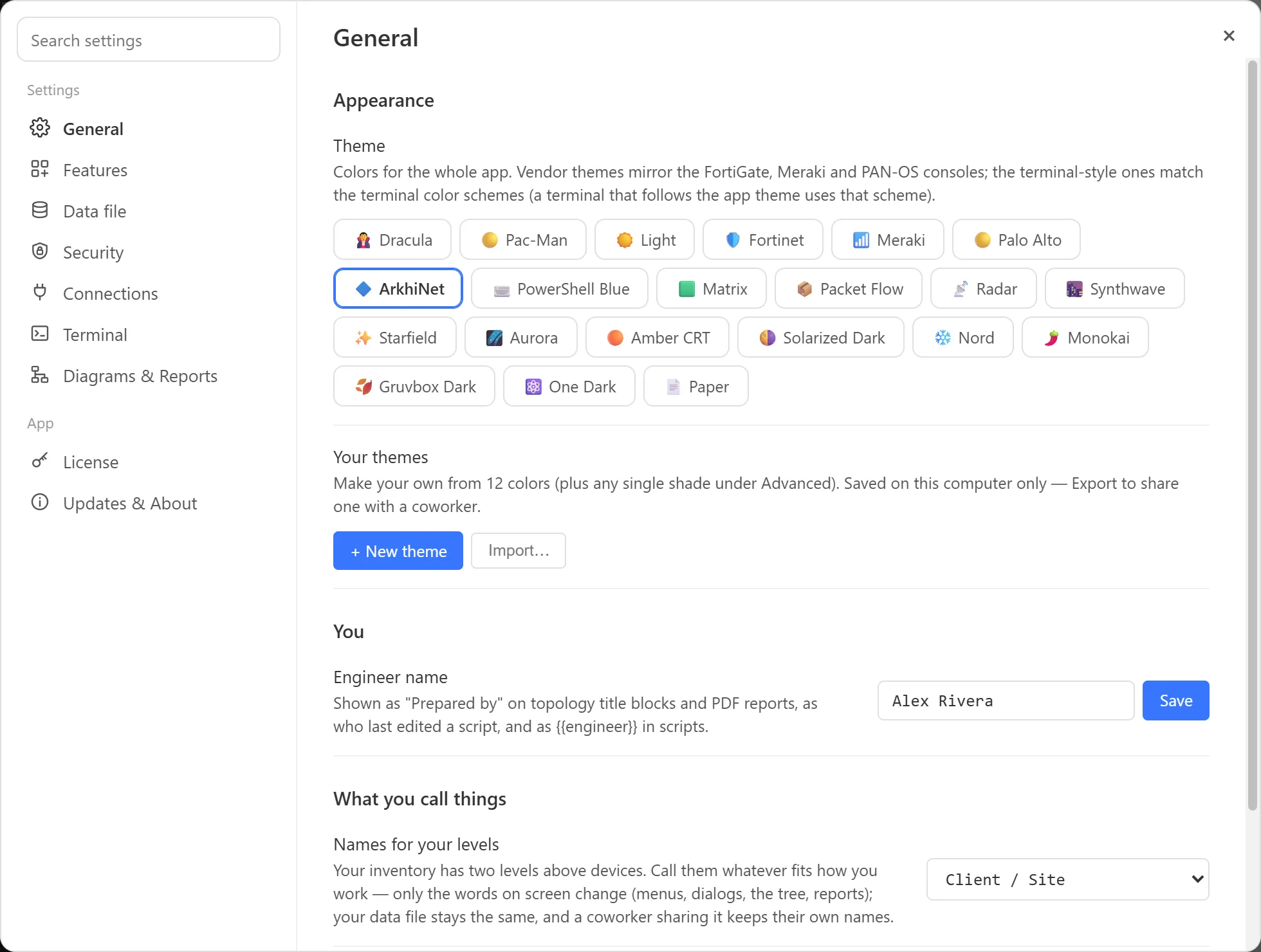
Section titled “Switch theme in Settings”- Open Settings: click ⚙ at the right end of the tab strip, or press Ctrl+,.
- Stay on General. The Appearance group is at the top.
- Under Theme, click the theme you want. The app recolors right away.
- Press Esc or click × to close Settings.
Custom themes you’ve made or imported appear in the same row, after the built-in ones.
Switch theme from the menu
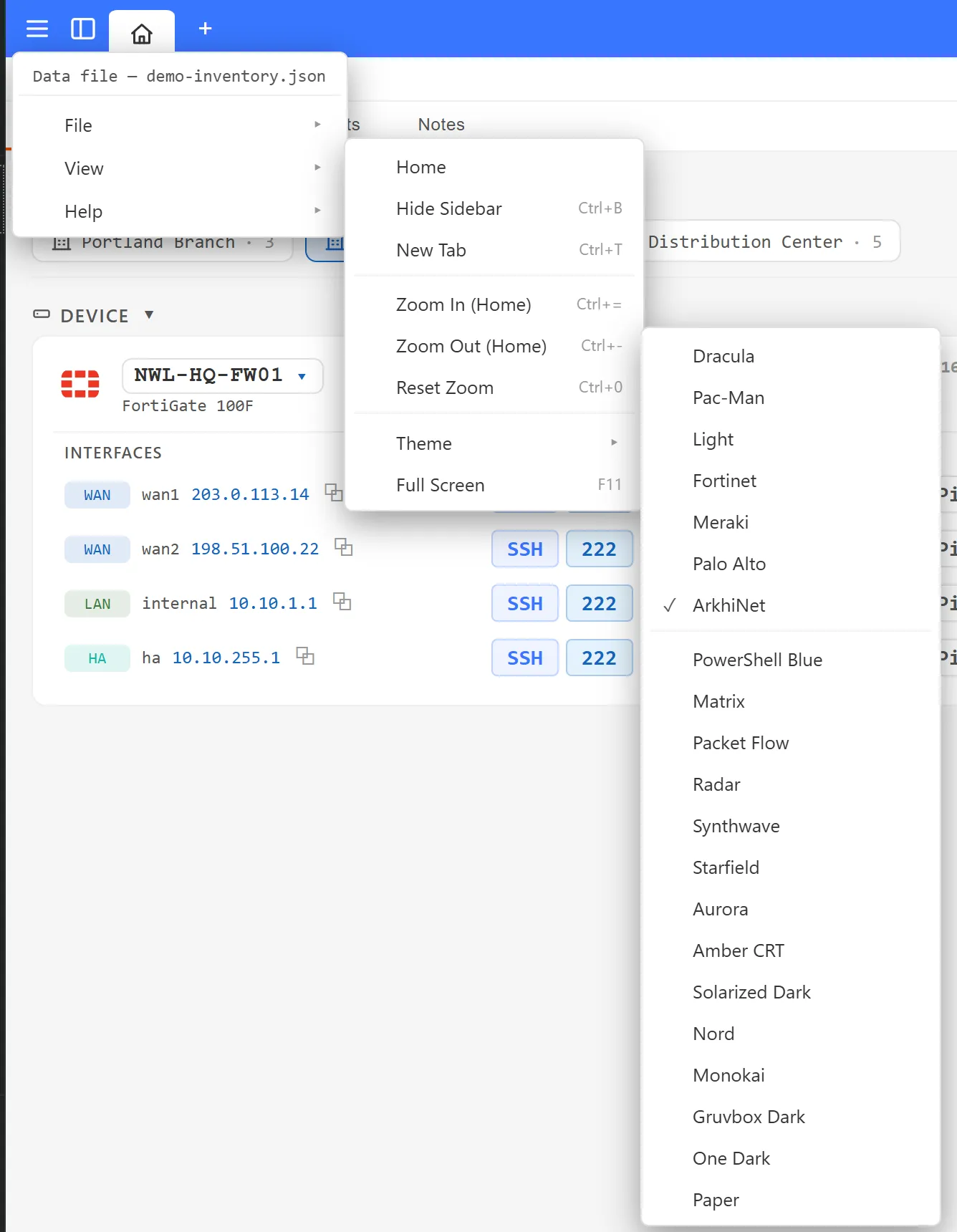
Section titled “Switch theme from the menu”- Click ☰ on the left of the tab strip.
- Point to View, then Theme.
- Click a theme. A check mark shows the one in use.
The Theme submenu lists the classic themes first, then the terminal-style themes, then your custom themes. The View menu is there whatever you’re working in, so you can switch theme from a terminal or a Notepad tab too.
Terminals and themes
Section titled “Terminals and themes”By default, every terminal pane follows the app theme: switch theme and your SSH, Telnet, serial and local shell panes recolor with it. With a terminal-style theme on, that means the matching scheme, animated background included. If you’d rather keep one terminal look whatever the app theme, pick a terminal color scheme with the paintbrush on any terminal pane. See Terminal color schemes.