
Edit configs in Notepad
ArkhiNet has a built-in Notepad for text and config files, so you can clean up a config backup or prepare a change without leaving the app. It opens files in Workbench tabs, beside your terminals, and borrows the search dialog and keyboard shortcuts from Notepad++.
Open or create a file
Section titled “Open or create a file”- Open a new tab with + or Ctrl+T.
- Under TOOLS, click Notepad.
- Click New file, Open file… or Compare files… (see Compare two files).
Shortcuts: Ctrl+N for a new file and Ctrl+O to open one. Ctrl+O works outside a terminal only, because it’s a real key in shells and editors on the device. With a Notepad tab active, the same items are in ☰, File.
You can also send terminal text to Notepad: right-click a terminal tab or pane header and click Open output in editor, or Open selection in editor if you’ve selected text.
Notepad opens text files up to 5 MB. Binary files are refused, and so are ArkhiNet’s own data file and config.json.
Save your work
Section titled “Save your work”- Ctrl+S saves, Ctrl+Shift+S is Save As….
- A tab with unsaved changes shows ●. Closing it asks Save, Don’t save or Cancel.
- If the file changes on disk while it’s open, a bar offers Reload from disk, Overwrite it or Save As…. A reload replaces your unsaved changes, and Ctrl+Z brings them back.
- Right-click the tab and click Duplicate for an independent untitled copy. The tab menu also has Reload from disk, Copy file path, Copy file name and Open containing folder.
Encoding and line endings are kept
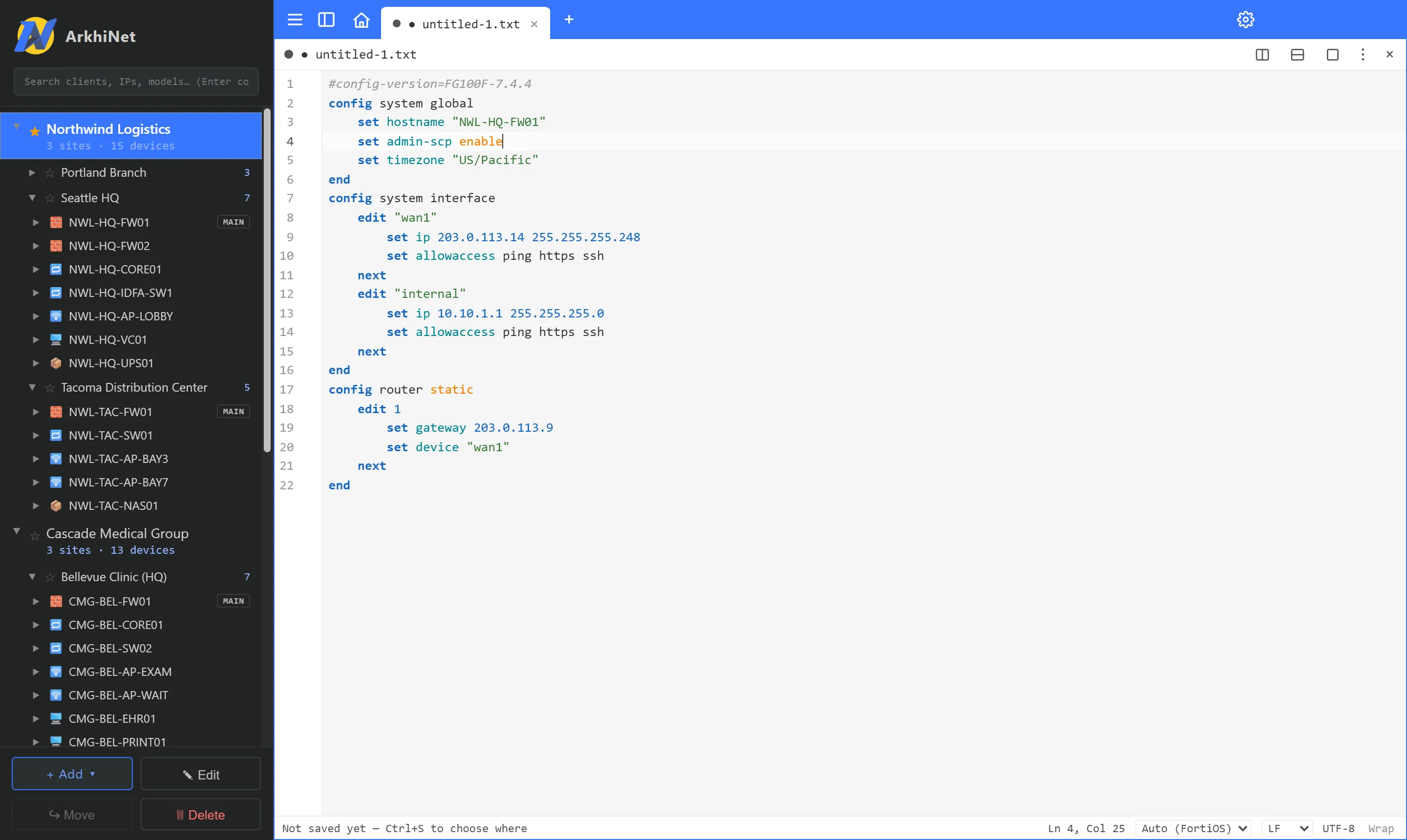
Section titled “Encoding and line endings are kept”Notepad saves a file the way it found it. The status bar at the bottom shows:
- Ln, Col and how many characters are selected.
- Syntax highlighting: Auto (with the language it detected), FortiOS, Cisco IOS or Plain text. Auto recognizes FortiOS
config/edit/setblocks and Cisco IOSinterface/hostname/!lines. - Line endings: CRLF or LF, as the file had them. Change them here or with ☰, Edit, EOL Conversion.
- Encoding: UTF-8, UTF-8 BOM, UTF-16 LE or Legacy encoding. A legacy (non-UTF-8) file is saved back byte for byte; Save As writes UTF-8.
- Wrap turns word wrap on or off for every Notepad tab.
Find, Replace and Mark
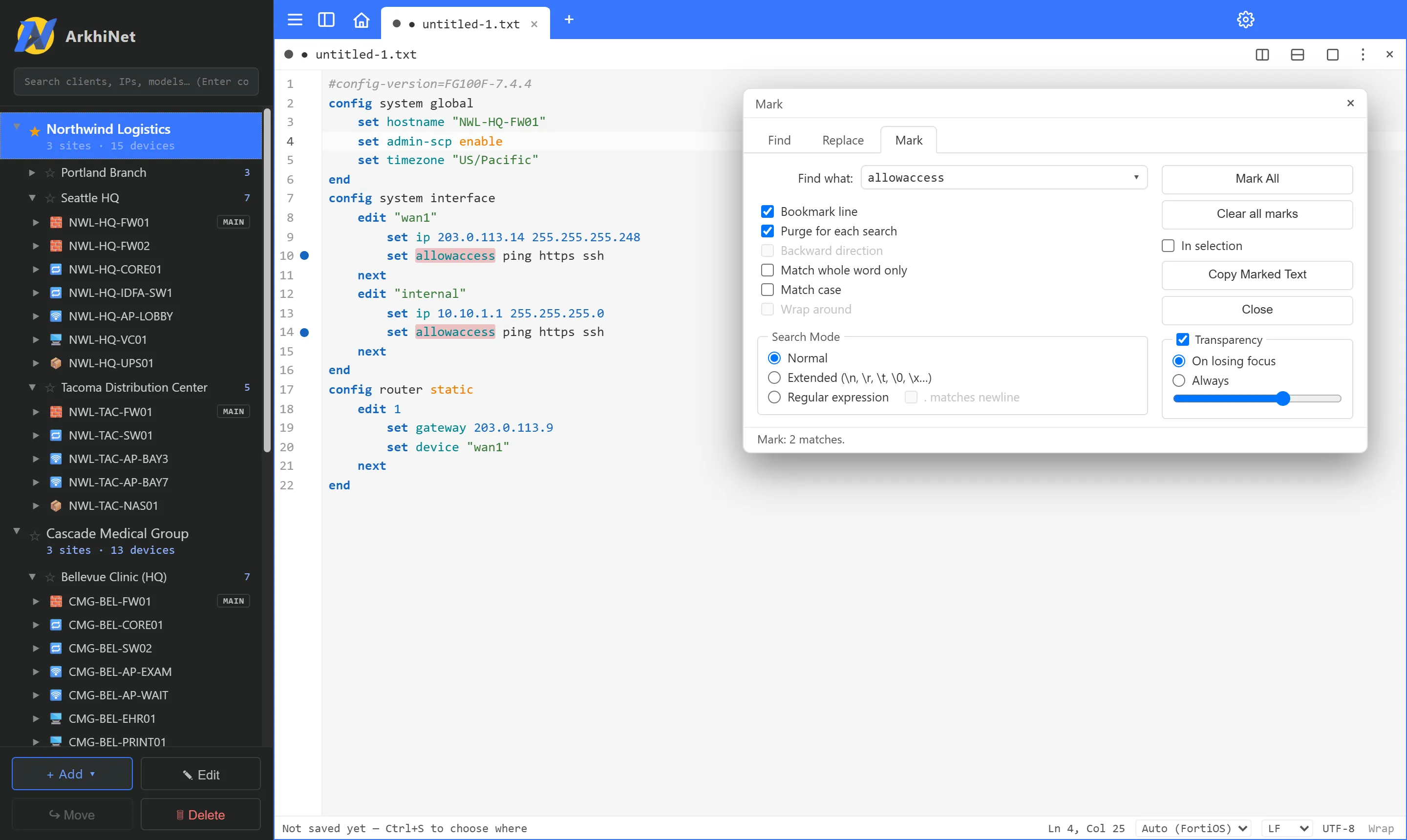
Section titled “Find, Replace and Mark”Ctrl+F, Ctrl+H and Ctrl+M open the same dialog on its Find, Replace or Mark tab. F3 and Shift+F3 find the next or previous match from the editor.
- Search Mode: Normal, Extended (\n, \r, \t, \0, \x…) or Regular expression, with . matches newline for regex.
- Options: Match whole word only, Match case, Wrap around, Backward direction and In selection.
- Find: Find Next, Count, Find All in Current Document and Find All in All Opened Documents. Find All lists every hit in a Search results panel.
- Replace: Replace, Replace All (one Ctrl+Z reverts it) and Replace All in All Opened Documents.
- Mark: Mark All highlights every match. Bookmark line also bookmarks each marked line, Purge for each search clears old marks first, Copy Marked Text copies every marked piece one per line, and Clear all marks removes them.
- The ▾ on the search field lists recent searches from this session. Transparency makes the dialog see-through On losing focus or Always.
The dialog remembers your search mode and options.
Line operations
Section titled “Line operations”Open ☰, Edit, Line Operations with a Notepad tab active:
- Duplicate Current Line (Ctrl+D), Move Up Current Line and Move Down Current Line (Ctrl+Shift+Up / Down).
- Insert Blank Line Above Current (Ctrl+Alt+Enter) and Insert Blank Line Below Current (Ctrl+Alt+Shift+Enter).
- Remove Empty Lines, Remove Empty Lines (Containing Blank characters), Remove Duplicate Lines, Remove Consecutive Duplicate Lines and Trim Trailing Space.
- Join Lines (Ctrl+J) and Reverse Line Order.
- Sorts, ascending or descending: lexicographically, ignoring case, as integers, or by length.
Convert Case to in the same menu has UPPERCASE (Ctrl+Shift+U) and lowercase (Ctrl+U). Alt+click adds cursors and Alt+drag selects a column.
Bookmarks
Section titled “Bookmarks”Bookmarks put a dot in the gutter so you can jump between lines in a long config.
- Ctrl+F2 toggles a bookmark on the current line.
- F2 and Shift+F2 jump to the next or previous bookmark.
- ☰, Search, Clear All Bookmarks removes them all.
Every shortcut is listed under ☰, Help, Keyboard Shortcuts.
Send text to a terminal
Section titled “Send text to a terminal”From a Notepad tab, Ctrl+Shift+Enter sends the selection, or the whole file if nothing is selected, to a terminal. A preview always opens first so you can pick the target and the pacing before anything is sent. See Send to a terminal.