
Quick connect and the new-tab screen
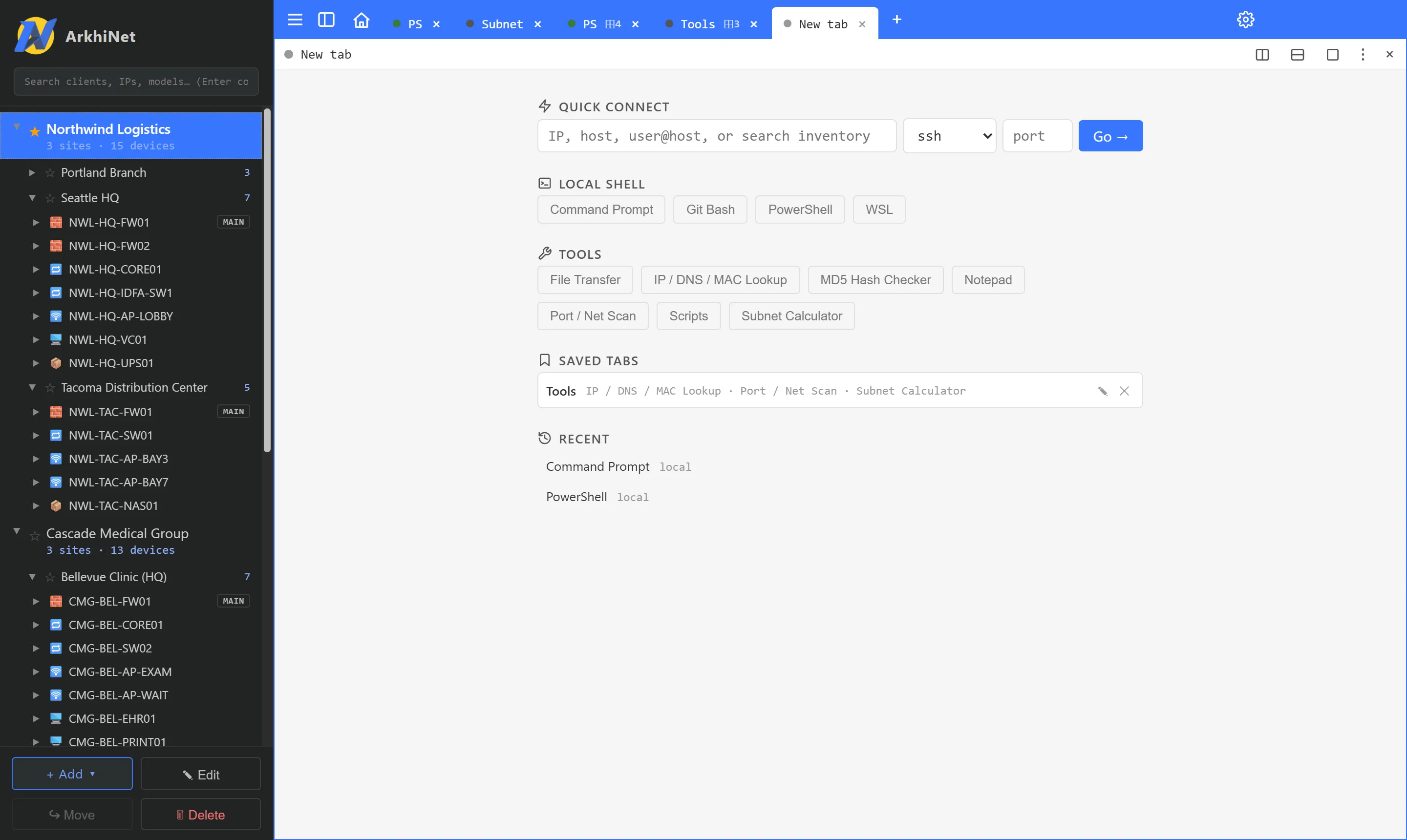
Every new tab and every new split pane starts on the new-tab screen. From there you can connect to a host that isn’t in your inventory, search the inventory, open a local shell or a tool, or reopen something you used recently.
Open it with the + at the end of the tab strip, or press Ctrl+T. Inside a terminal, use Ctrl+Shift+T, because a plain Ctrl+T goes to the device.
Connect to any host
Section titled “Connect to any host”The QUICK CONNECT bar has a host box, a protocol drop-down, a port box and Go →.
- Type an IP address or hostname. For SSH you can include a username and port:
admin@10.10.1.1oradmin@10.10.1.1:2222. - Pick the protocol: ssh, sftp, telnet, serial, https, http or rdp. The default is ssh.
- Optionally type a port. Leave it blank to use the protocol’s default.
- Press Enter or click Go →.
What happens next depends on the protocol:
- ssh and telnet open a terminal in this pane.
- sftp opens the File Transfer tab for that host. See File Transfer.
- https, http and rdp open in your browser or Remote Desktop. The new-tab screen stays open and shows a line saying what it opened.
If the IP you type belongs to a device in your inventory, the session is labeled with that device’s name.
A username typed as user@host is used for this connection only. To set a username you always use, see Connection options.
Open a serial console
Section titled “Open a serial console”- Pick serial in the protocol drop-down. The host box changes to
COM1and the port box tobaud. - Type the COM port, for example
COM3. - Type the speed in the baud box, or leave it blank for 9600.
- Press Enter.
Data bits, parity, stop bits and flow control come from Settings, Connections. See Connection options.
Connect to an inventory device
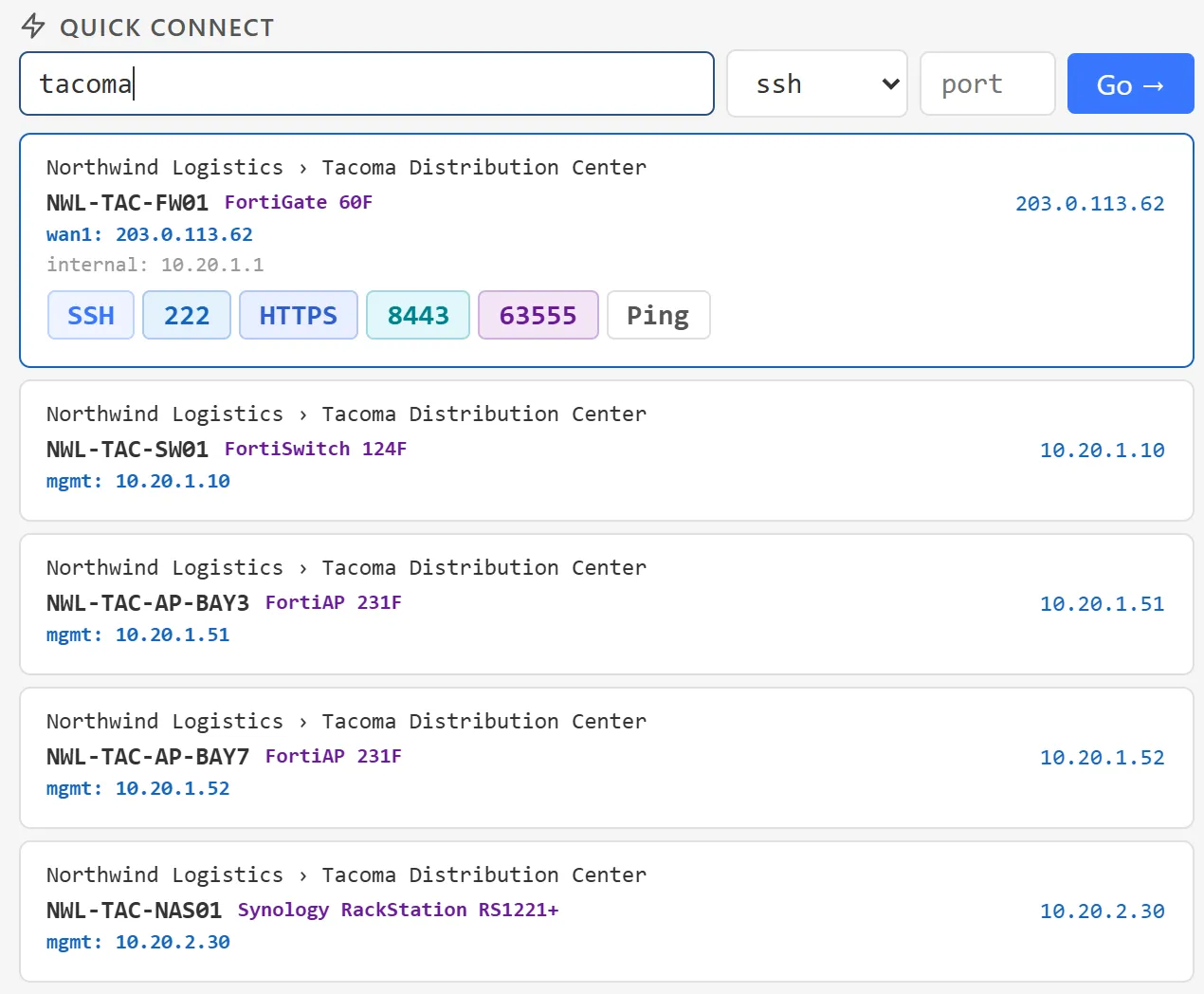
Section titled “Connect to an inventory device”Type part of a device name, IP, model, site or client into the same box. Matching devices appear as cards below the bar, the same cards as global search (Ctrl+G).
- Type a search, for example
tacomaorNWL-TAC. - Use ↑ and ↓ to highlight a card, or hover a card to see all its Launch Buttons and Ping.
- Press Enter or click the card to connect with its default button, or click a specific Launch Button.
The default is the device’s first SSH Launch Button. If you add a port to the search, such as NWL-TAC-NAS01 5001, ArkhiNet uses the Launch Button with that port. With sftp selected, a card opens File Transfer for that device instead.
Duplicate a session
Section titled “Duplicate a session”When you split a pane that has a session in it, the new pane shows a ⧉ Duplicate button with the source session’s name. Click it, or press Enter with the host box empty, to open another session to the same target.
If you’d rather skip the new-tab screen when splitting, open Settings, Terminal, and set New split pane opens to Duplicate session.
LOCAL SHELL
Section titled “LOCAL SHELL”Click PowerShell or Command Prompt to open a local shell in this pane. PowerShell 7, Git Bash and WSL also appear when ArkhiNet finds them on this computer. See Local shells.
Each button opens a tool in this pane: File Transfer, IP / DNS / MAC Lookup, MD5 Hash Checker, Notepad, Port / Net Scan, Scripts and Subnet Calculator. Tools you’ve turned off in Settings, Features don’t appear.
SAVED TABS
Section titled “SAVED TABS”This section appears once you’ve saved at least one tab. Click a saved tab to open it in place of the empty tab. Use ✎ to rename it and ✕ to delete it. See Saved tabs.
RECENT
Section titled “RECENT”Your last five sessions, with the client and site they belong to. Click one to open it again. Until you’ve connected to something, the section reads “No sessions yet.”