
Create a custom theme
If none of the built-in themes suits you, make your own. You pick 12 main colors and ArkhiNet works out every other shade from them, so a theme is always complete. The whole app previews your changes as you make them.
Custom themes are saved on this computer only, never in the shared data file. To give one to a coworker, export it as a file.
Create a theme
Section titled “Create a theme”- Open Settings (⚙ or Ctrl+,) and stay on General.
- Under Your themes, click + New theme. The theme editor docks on the right and starts from the colors you’re looking at now.
- Type a Name, for example
Night shift. - Optional: under Start from, choose any built-in or custom theme to copy its 12 main colors.
- Under Colors, set each color with the color picker or by typing a hex value such as
#1e2a3a. - Click Save theme. The new theme becomes your app theme.
Cancel or Esc closes the editor and puts back the theme you had before.
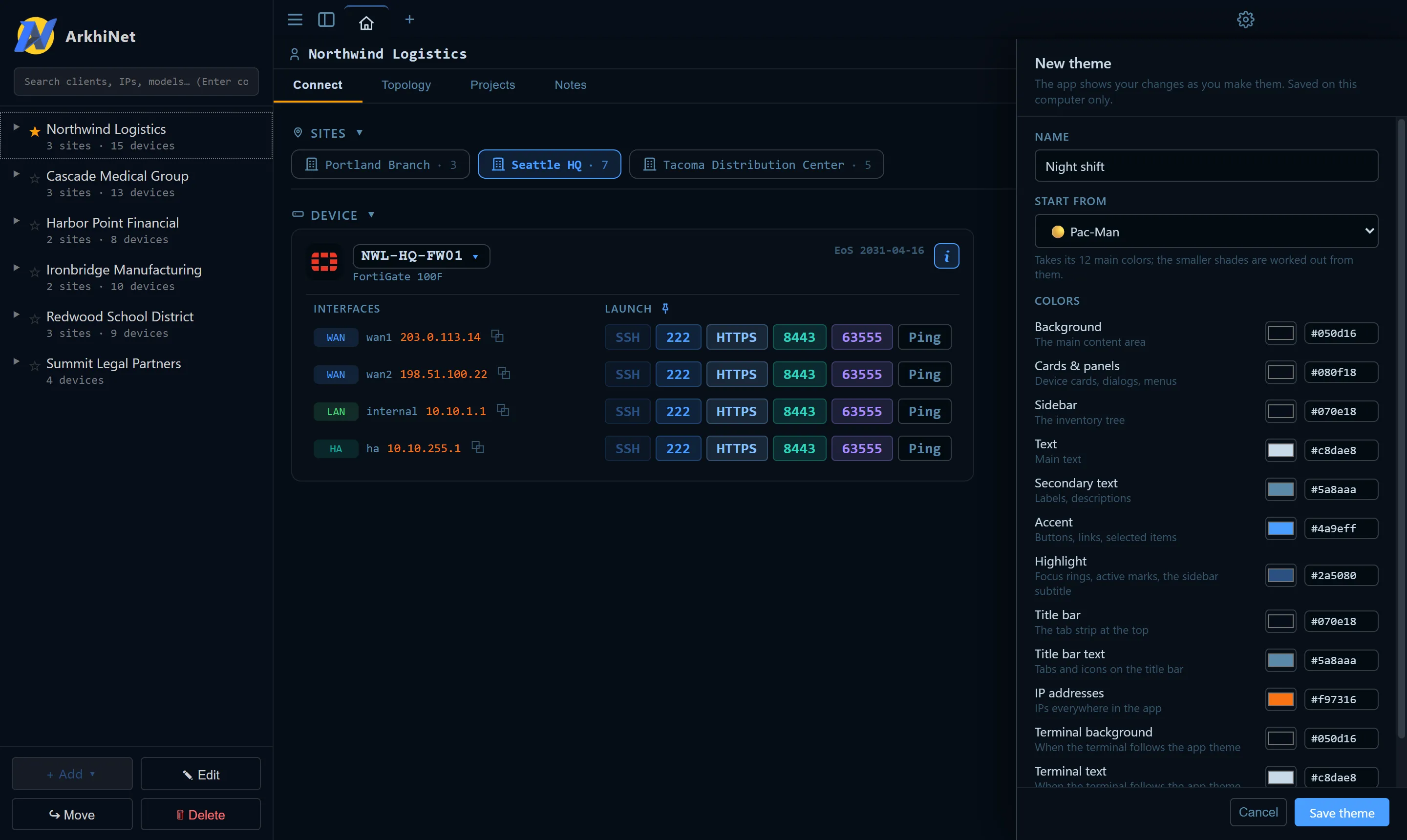
The 12 colors
Section titled “The 12 colors”| Color | What it paints |
|---|---|
| Background | The main content area |
| Cards & panels | Device cards, dialogs, menus |
| Sidebar | The inventory tree |
| Text | Main text |
| Secondary text | Labels, descriptions |
| Accent | Buttons, links, selected items |
| Highlight | Focus rings, active marks, the sidebar subtitle |
| Title bar | The tab strip at the top |
| Title bar text | Tabs and icons on the title bar |
| IP addresses | IPs everywhere in the app |
| Terminal background | Terminals, when they follow the app theme |
| Terminal text | Terminals, when they follow the app theme |
ArkhiNet checks whether your background is dark or light and picks matching status colors and shades to suit.
Fine-tune a single shade
Section titled “Fine-tune a single shade”The 12 colors drive dozens of smaller shades: borders, input fields, tags, banners and so on. To change one of them directly:
- In the theme editor, click Advanced. It lists every shade in the theme, grouped.
- Type in the filter box to narrow the list, for example
tag,sidebarorborder. - Change a shade’s color. It’s now fixed in place and no longer follows the 12 main colors. The Advanced heading shows how many shades you’ve changed.
- To undo one, click ↺ next to it. To undo them all, click Reset all.
Edit or delete a theme
Section titled “Edit or delete a theme”The Edit, Export… and Delete buttons appear next to the theme’s name under Your themes while that theme is your app theme. To manage a different custom theme, switch to it first.
- Select the custom theme (in the Theme row, or ☰, then View, then Theme).
- Under Your themes, click Edit to reopen the editor, or Delete to remove it.
- If you chose Delete, confirm with the red Delete button that names the theme (for example Delete “Night shift”), or click Keep.
Deleting the theme you’re using switches the app back to Dracula. You can keep up to 30 custom themes.
Share a theme
Section titled “Share a theme”Themes travel as small .arkhinet-theme.json files that hold the theme’s name and colors, nothing else.
To export:
- Select your custom theme.
- Under Your themes, click Export….
- Choose where to save the file. It’s named after the theme, for example
Night shift.arkhinet-theme.json.
To import:
- Under Your themes, click Import….
- Pick the
.arkhinet-theme.jsonfile.
The imported theme becomes your app theme straight away. If you already have a theme with the same name, the import gets a number added, such as Night shift (2).