
Terminal color schemes
Terminal colors are separate from the app theme. You can let terminals follow the app theme, give them another theme’s terminal colors, pick a preset scheme, or set your own background and text color.
One choice applies to every terminal pane: SSH, Telnet, serial, ping and local shells. It’s saved on this computer only.
Open the terminal color picker
Section titled “Open the terminal color picker”- Open any terminal pane. A local shell works fine: open a new tab (+ or Ctrl+T) and click PowerShell under LOCAL SHELL.
- Click the paintbrush (🖌) in the pane’s header bar.
- The TERMINAL COLORS list opens. Each option shows a small
login as:sample in its colors. - Click an option. Every open terminal recolors right away.
Close the list with Esc or by clicking anywhere outside it.
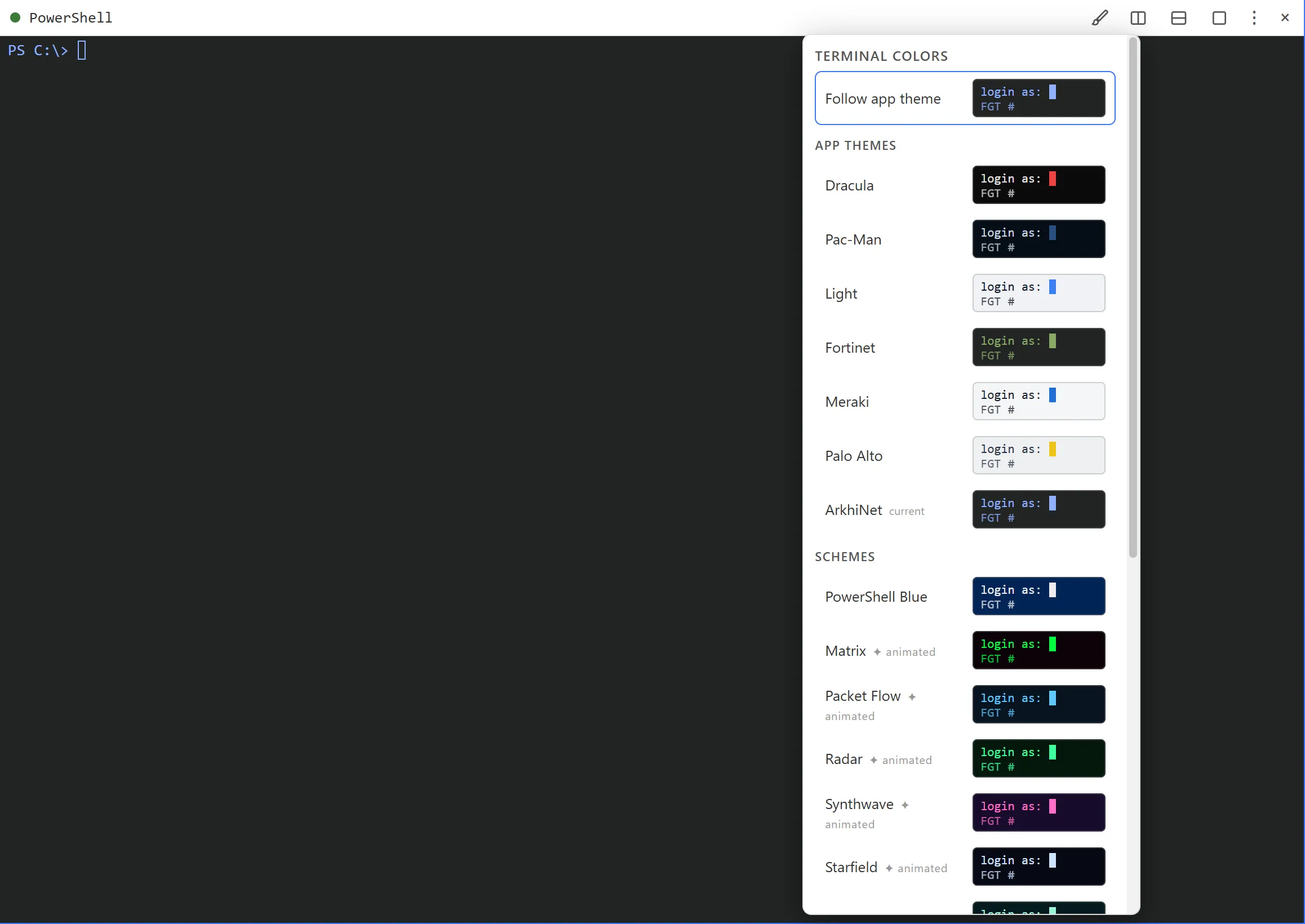
Follow the app theme
Section titled “Follow the app theme”Follow app theme, at the top of the list, is the default. Terminals use the current app theme’s terminal colors and change whenever you switch theme. For a custom theme, these are its Terminal background and Terminal text colors.
Use another theme’s terminal colors
Section titled “Use another theme’s terminal colors”Under APP THEMES, the classic built-in themes and your custom themes are listed with their own terminal colors. The terminal-style themes aren’t repeated here, because each one’s terminal is simply its matching scheme under SCHEMES. Pick one to keep that terminal look whatever the app theme is: for example the Fortinet terminal while the app is on ArkhiNet. The theme you’re using now is marked current.
If you later delete the custom theme you picked here, terminals go back to following the app theme.
Preset schemes
Section titled “Preset schemes”Under SCHEMES there are 15 presets:
| Scheme | Animated background |
|---|---|
| PowerShell Blue | |
| Matrix | Yes |
| Packet Flow | Yes |
| Radar | Yes |
| Synthwave | Yes |
| Starfield | Yes |
| Aurora | Yes |
| Amber CRT | |
| Solarized Dark | |
| Dracula | |
| Nord | |
| Monokai | |
| Gruvbox Dark | |
| One Dark | |
| Paper (light) |
The Dracula scheme matches the app’s Dracula theme (black, light text and a red cursor), not the classic purple Dracula palette.
Animated backgrounds
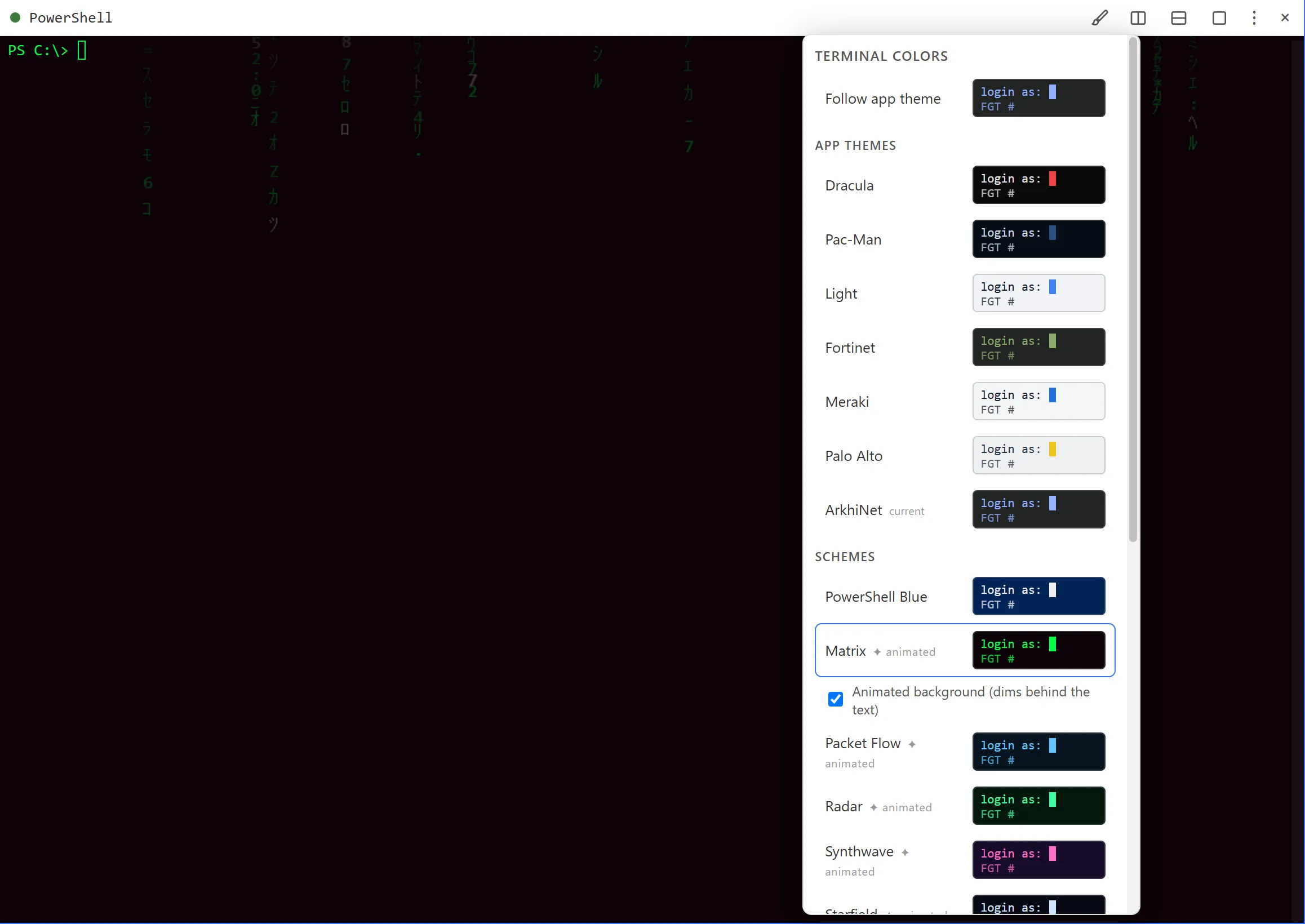
Section titled “Animated backgrounds”The six animated schemes are marked ✦ animated in the list. When you pick one, the animation plays at full strength over the terminal for a couple of seconds, then settles into a faint, slower loop behind the text. Every new session you open under that scheme gets the same short intro.
The animation never covers your text or gets in the way of typing and selecting. It runs only while the pane is visible, and pauses while the window is minimized.
To turn the animation off but keep the scheme’s colors:
- Open the picker with the paintbrush.
- Under the selected animated scheme, clear Animated background (dims behind the text).
The setting is remembered for that scheme. Picking the same scheme again keeps your choice.
Custom background and accent
Section titled “Custom background and accent”To use your own colors:
- Open the picker and scroll to CUSTOM.
- Click the color box next to Background and choose a color.
- Click the color box next to Accent (text) and choose a color. The accent is used for the text and the cursor, and a translucent version of it for selected text.
Terminals switch to your custom colors as soon as you change either one. The hex value of each color is shown next to it.