
Set up SSH tunnels
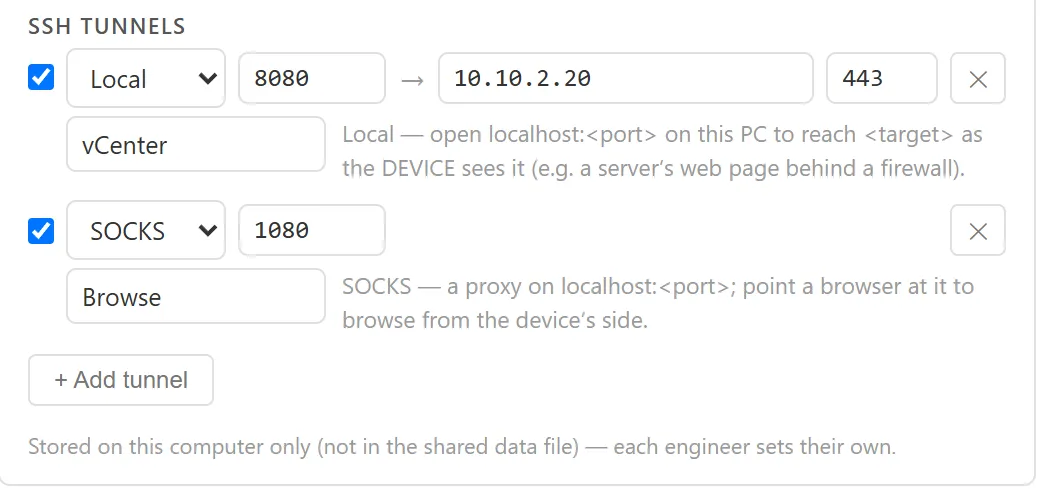
An SSH tunnel forwards a port on your computer through a device’s SSH session. Use a Local tunnel to reach one server behind a firewall, such as a web page on an internal host, or a SOCKS tunnel to browse from the device’s side of the network.
Tunnels are set per device and stored on this computer only, never in the shared data file.
Tunnel types
Section titled “Tunnel types”| Type | What it does |
|---|---|
| Local | Opens a port on 127.0.0.1 on this computer that reaches a target host and port as the device sees it. |
| SOCKS | Runs a SOCKS proxy on 127.0.0.1 on this computer. Point a browser at it to browse from the device’s side. |
Both always listen on 127.0.0.1, so nothing else on your LAN can use them.
Add a tunnel to a device
Section titled “Add a tunnel to a device”- In the sidebar, right-click the device, for example NWL-HQ-FW01, and click Edit.
- Expand the CONNECTION section for this computer and find SSH TUNNELS.
- Click + Add tunnel.
- Choose Local or SOCKS in the drop-down.
- Fill in the ports:
- Local: the local port on this computer, then the target host and port. For example, local port
8080to target10.10.2.20port443. - SOCKS: just the local port, for example
1080.
- Local: the local port on this computer, then the target host and port. For example, local port
- Optionally give the tunnel a name.
- Click Save Device.
A tunnel row with a missing or invalid field shows a warning and isn’t saved until it’s complete. Ports run from 1 to 65535. Use the checkbox at the start of a row to turn a tunnel off without deleting it, and ✕ to remove it.
Use the tunnels
Section titled “Use the tunnels”Enabled tunnels open with every SSH tab to that device, whether it connects with PuTTY or Windows OpenSSH. They also go with External PuTTY and Open in PuTTY ↗.
- Connect to the device over SSH as usual and log in.
- A ⇄ Tunnels strip under the pane header lists the active tunnels.
- Use them from this computer. With the example above, browse to
https://127.0.0.1:8080. For SOCKS, set your browser’s SOCKS proxy to127.0.0.1and the port you chose.
The tunnels close when the SSH session ends.
Open only the tunnels
Section titled “Open only the tunnels”When you need the forwards but not a shell on the device:
- Right-click the device in the sidebar.
- Click Open SSH tunnels only. This item appears only when the device has at least one tunnel turned on.
ArkhiNet opens an SSH tab titled “Tunnels · device” with no shell. Log in, and nothing else appears after that. Close the tab to close the tunnels.