
Activate a Team license
ArkhiNet is free for individual use, with every feature and unlimited devices. Once two or more engineers at an organization use it, the organization needs a Team license. This page covers what that means and how to activate your key.
What a Team license is
Section titled “What a Team license is”- $299 per year, per organization. One license covers the whole organization.
- Required once two or more engineers at an organization use ArkhiNet. One engineer, at home or at work, can use the free version, provided no one else in the organization uses ArkhiNet.
- Up to 10 computers. Each computer you activate the key on uses one of the 10.
- Unlimited devices, the same as the free version. Computers are the machines ArkhiNet runs on, not the network devices in your inventory.
For what’s included and how to buy, see Pricing. Your license key arrives in your purchase email.
The tier is informational
Section titled “The tier is informational”ArkhiNet doesn’t lock any feature behind the license. The free version and a Team license run exactly the same app: encryption, topology, reports, tools, scripts and the shared data file all work either way. The tier shown in Settings tells you how this computer is licensed. Nothing else in the app changes.
Activate your license key
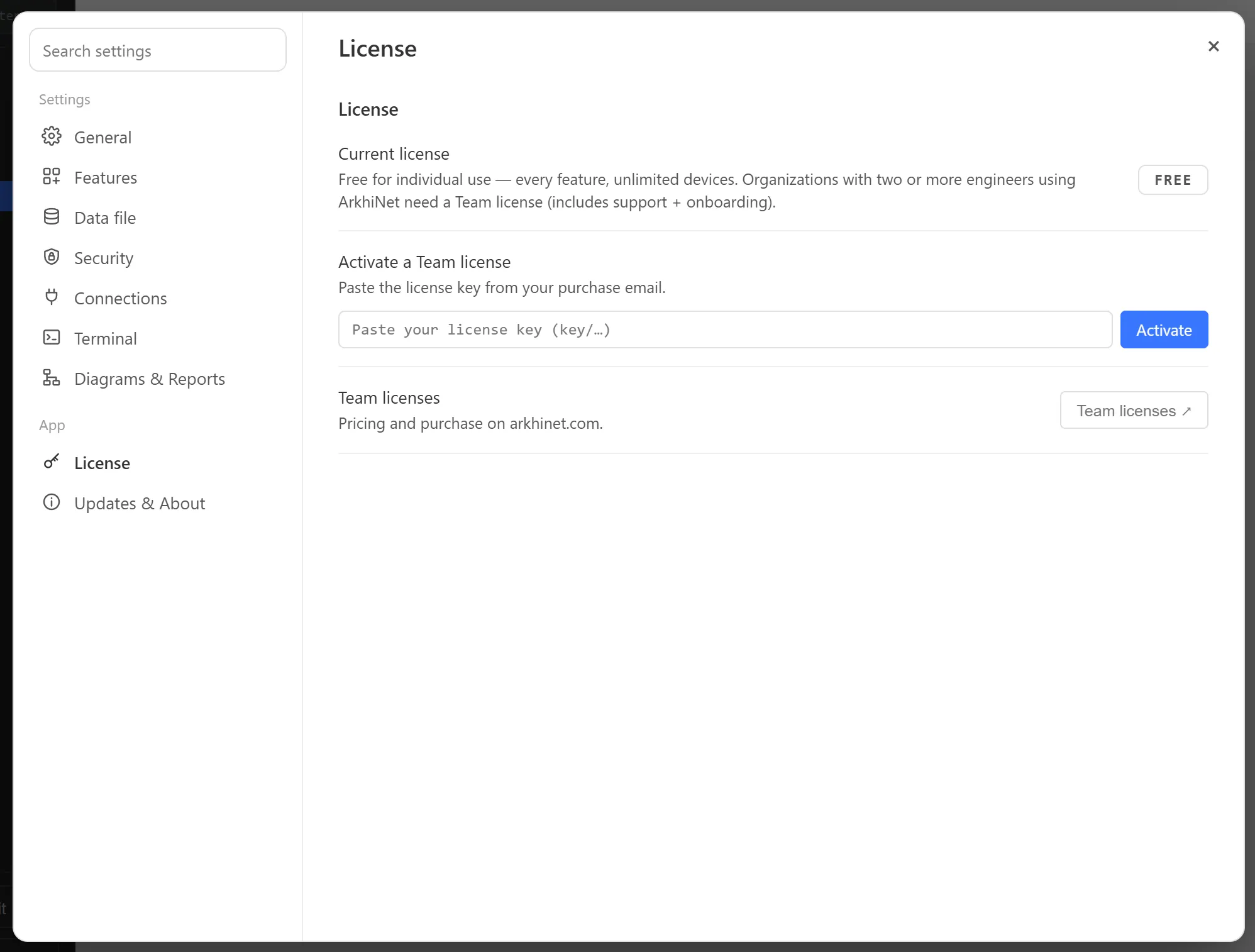
Section titled “Activate your license key”- Open Settings: click ⚙ at the right end of the tab strip, or press Ctrl+,.
- Click License in the left-hand list (under App).
- Under Activate a Team license, paste the key from your purchase email into the box. The key starts with
key/. - Click Activate.
ArkhiNet checks the key and registers this computer against your license. When it’s done, the Current license badge changes from FREE to TEAM, and the row shows the expiry date and when the license was last checked.
If ArkhiNet can’t reach the license service, it still verifies that the key is genuine and activates it as (offline-verified). It confirms the license online at a later start.
Repeat these steps on each computer that should use the license, up to 10.
If all 10 computers are in use
Section titled “If all 10 computers are in use”If the key is already active on the maximum number of computers, activation fails with a message saying so. Free up a computer first, as described below, then try again.
Move a license to another computer
Section titled “Move a license to another computer”To move a license from one computer to another:
- On the computer you’re retiring, open Settings, then License.
- Under This computer, click Deactivate this computer. This frees the computer’s place on the license, and the badge goes back to FREE.
- On the new computer, activate the key as usual.
Deactivating removes the license only from that computer. Your data file isn’t touched.
Renewal and expiry
Section titled “Renewal and expiry”A Team license is annual. ArkhiNet re-checks it about once a week, when the app starts. If the license expires or is canceled, the badge goes back to FREE. Nothing stops working and no data is affected. If the badge still shows FREE after you renew, activate the key again.
While this computer is on the free tier, you can also click Team licenses ↗ in Settings, License, to open the Pricing page.