
Browse and copy files with File Transfer
The File Transfer tab (added in 4.7.0) is a two-pane SFTP browser: THIS COMPUTER on the left, the DEVICE on the right. Use it for Linux servers, NAS boxes and anything else with SSH file access, when you want to look around and copy several files. It runs the bundled psftp from the same PuTTY release ArkhiNet uses for SSH.
Open File Transfer for a device
Section titled “Open File Transfer for a device”- In the sidebar, right-click the device, for example NWL-TAC-NAS01 under Northwind Logistics, Tacoma Distribution Center.
- Click File Transfer.
The tab connects straight away. It uses the port of the device’s SSH Launch Button (22 if it has none) and the device’s connection options on this computer. See Launch Buttons.
You can also open it:
- From an SSH tab: right-click the tab or pane header and click File Transfer.
- From the new-tab screen (+ or Ctrl+T): under QUICK CONNECT, pick sftp as the protocol and type a host or search the inventory.
- From the new-tab screen’s TOOLS: click File Transfer. The device side shows a Connect to a device card. Type an IP, host or
user@host, or search your inventory, add a port if it isn’t 22, and click Connect.
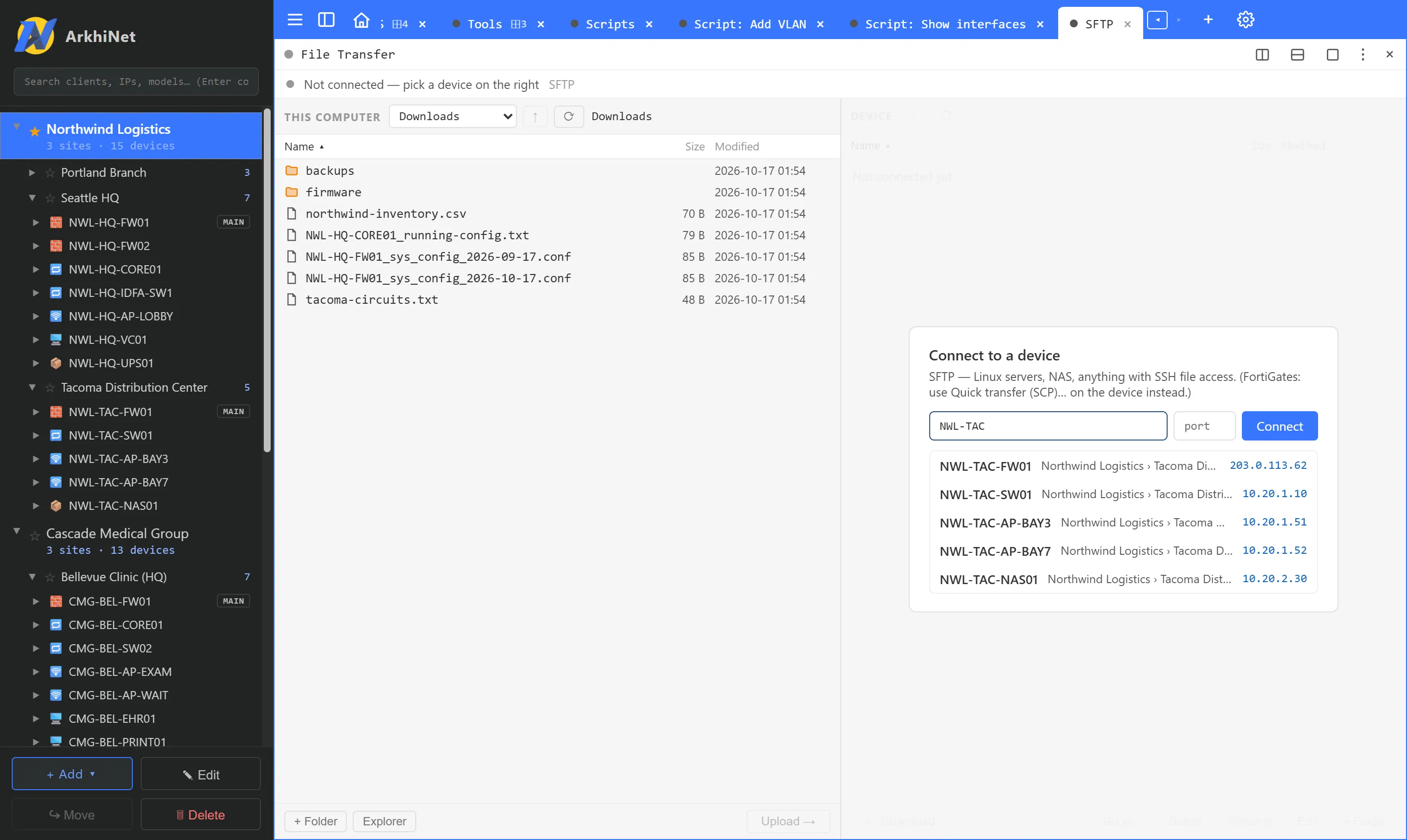
File Transfer always opens in its own tab, because the two panes need the width.
Log in
Section titled “Log in”The login happens inside the tab:
- The first time you reach a host, a host-key card appears. Click Trust and remember to save the key in PuTTY’s list (the same list your SSH tabs and PuTTY use), Connect once, or Cancel. A changed key is shown in red.
- If the device has no saved username, the tab asks for one. Save one in the device editor’s connection settings for this computer and the question is skipped next time.
- Enter the password, key passphrase or 2FA code the device asks for, then click Log in.
Each answer is passed to the connection once. ArkhiNet never stores passwords or keys.
Find your way around
Section titled “Find your way around”- Device side: click any part of the breadcrumb to jump there. ↑ (Backspace) goes up one folder, ⟳ (F5) refreshes, the home button returns to your home folder, and Go to… takes a full path starting with
/. - This computer: the drop-down offers Downloads, Documents and Choose folder…, which adds any folder you pick in the Windows dialog. You can browse anything inside those. Explorer shows the current folder in Windows Explorer.
- Sort by Name, Size or Modified. Click, Ctrl+click and Shift+click to select, Ctrl+A for all. Enter or a double-click opens a folder.
Copy files
Section titled “Copy files”- Select one or more files on either side.
- Click Upload → (this computer to the device) or ← Download (the device to this computer). You can also drag the files from one side to the other.
- If a file with the same name already exists, choose Replace, Skip, or Cancel.
Copies are files only for now. Folders in a selection are listed as skipped. A device file name that isn’t valid on Windows is saved under a close valid one, for example a:b becomes a_b.
Watch the transfer queue
Section titled “Watch the transfer queue”The TRANSFERS list at the bottom shows each copy with a progress bar and byte count.
- Copies run one at a time. The connection does one thing at a time, so browsing waits while a copy runs, and the pane shows busy….
- Cancel stops one copy. You stay logged in.
- Clear finished removes completed, failed and canceled entries.
Uploads go to <name>.arkhinet-part on the device and are moved into place only when every byte has arrived. Downloads also land in a part file and are renamed when complete.
Make, rename and delete on the device
Section titled “Make, rename and delete on the device”- + Folder creates a folder (it works on this computer’s side too).
- Rename (F2) renames the selected item.
- Delete (Delete) removes the selection after a red confirmation.
Save folders you use often
Section titled “Save folders you use often”- Open a folder on the device side and click ☆ next to the home button. It turns to ★.
- Click Saved ▾ to see this device’s saved folders. Click one to go there.
- Click Start here on a saved folder to make the device open in it every time it connects. Click it again to go back to the home folder.
- Click ✕ to remove a saved folder.
Saved folders are kept on this computer only, per device, never in the shared data file.
Status bar
Section titled “Status bar”The status bar shows Connected, Logging in… or Not connected, the host and what the connection is doing.
- SSH ↗ opens an ordinary SSH tab to the same device. It does its own login and starts in your home folder.
- Disconnect ends the connection. Reconnect logs in again, and Another device… returns to the connect card.
Closing the tab ends the connection. Downloaded files are ordinary files on disk and are not covered by data-file encryption.
Open in WinSCP
Section titled “Open in WinSCP”If you have WinSCP installed and prefer it, you can open a device in it straight from ArkhiNet. See Open a device in WinSCP.