
MD5 Hash Checker
The MD5 Hash Checker confirms a firmware file is exactly the one the vendor published before you push it to a device. A truncated download or a tampered image gives a different hash, and finding that out on your desk beats finding it out halfway through an upgrade window.
It works with any file, such as .out, .img, .bin or .zip, so you can use it for FortiGate, Cisco or any other vendor’s images.
Open the MD5 Hash Checker
Section titled “Open the MD5 Hash Checker”- Click + in the tab strip, or press Ctrl+T, to open the new-tab screen.
- Under TOOLS, click MD5 Hash Checker.
The tool opens in its own tab, labeled MD5. You can also pick it from the TOOLS section of any empty pane after you split a tab.
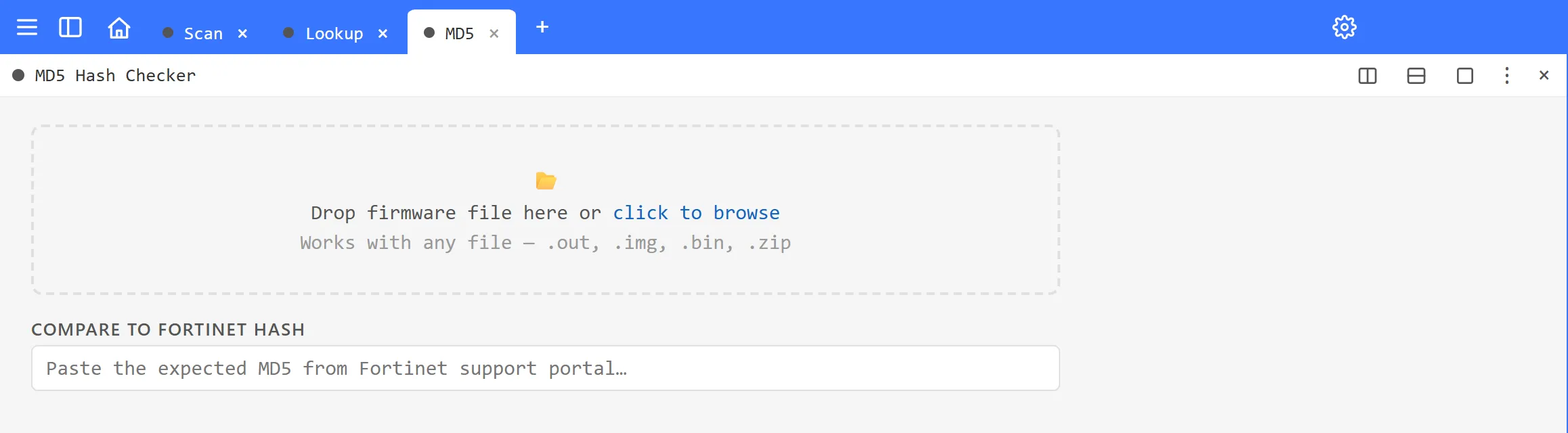
Check a firmware file
Section titled “Check a firmware file”- Get the expected MD5 for the image from the vendor. For Fortinet, it’s listed next to the image on the Fortinet support portal.
- Drag the firmware file onto the box that says Drop firmware file here or click to browse, or click the box and pick the file.
- Wait while ArkhiNet shows ⟳ Computing hash…. A large image can take a few seconds.
- When it’s done, the file name, its size and its MD5 HASH appear.
- Paste the vendor’s hash into COMPARE TO FORTINET HASH. The box is available once a hash has been computed, and it ignores upper or lower case and spaces at either end.
ArkhiNet compares the two as soon as you paste:
- A green message and border mean the hashes match and the file is good to use.
- A red message and border mean they don’t match. Don’t use that file: download it again from the vendor and check the new copy.
The comparison works the same for any vendor’s hash, despite the Fortinet name on the box.
To check another file, click ✕ Clear next to the file name, or drop the next file onto the box.
Where the hash is computed
Section titled “Where the hash is computed”The file is read and hashed on this computer, inside ArkhiNet. It isn’t uploaded anywhere, so the tool works offline and on isolated management networks.
Next steps
Section titled “Next steps”When the image checks out, upload it with Quick transfer (SCP)… from the device’s right-click menu, which is the way to go for FortiGates since they don’t offer SFTP, or with File Transfer for devices that support SFTP.