Organize the inventory your way
ArkhiNet’s two upper levels are called Client and Site by default, which suits an MSP. If you look after one company’s offices or a home lab, you can rename them, flatten the tree where a level adds nothing, and hide features you never touch. All of these choices are saved on your PC only, so a coworker who shares your data file keeps their own.
On a new install, ArkhiNet asks How do you organize your network? and sets all of this in one click. MSP / consultant keeps Client / Site and every feature. Company network switches to Company / Location and hides Projects. Home lab / tinkering switches to Folder / Subfolder and hides Projects and the inventory report. Skip keeps the defaults. Everything below changes those choices later.
Rename the levels
Section titled “Rename the levels”- Open Settings (the ⚙ button, or Ctrl+,) and go to General.
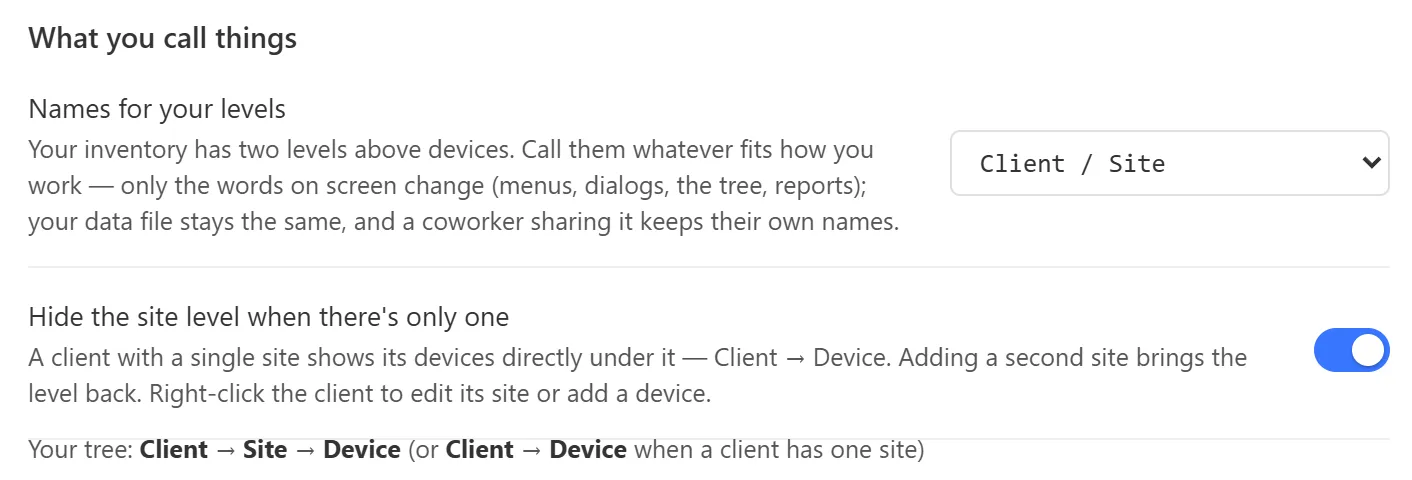
- Under What you call things, open Names for your levels and pick one:
- Client / Site
- Company / Location
- Folder / Subfolder
- Region / Building
- Custom…
- For Custom…, fill in Custom names: a singular and plural for the Top level and the Second level, for example
Lab/LabsandRack/Racks.
The change applies at once. The new words appear in the tree, menus, dialogs, search, the breadcrumb and PDF reports. Your data file doesn’t change, and Device is always called Device.
Custom names can use letters, numbers, spaces and -, &, ' and ., up to 24 characters. A blank name falls back to the default, and a blank plural adds an “s” to the singular.
Hide single sites
Section titled “Hide single sites”When a client has only one site, the site level is just an extra click. With Hide the site level when there’s only one turned on (it’s on by default), such a client shows its devices directly under it. For example, Summit Legal Partners, with only its Main Office, shows SLP-MAIN-FW01 and the rest straight under the client, and its row reads 4 devices instead of 1 site · 4 devices.
Add a second site and the site level comes back for that client. Nothing in the data changes either way.
While the site is hidden, right-click the client to reach it:
- New device adds a device to that one site.
- Edit site “Main Office”… opens the site’s editor for its notes, tags and Launch Buttons.
The switch is in Settings → General → What you call things. Below it, a line shows your tree’s shape, for example Client → Site → Device.
Show or hide features
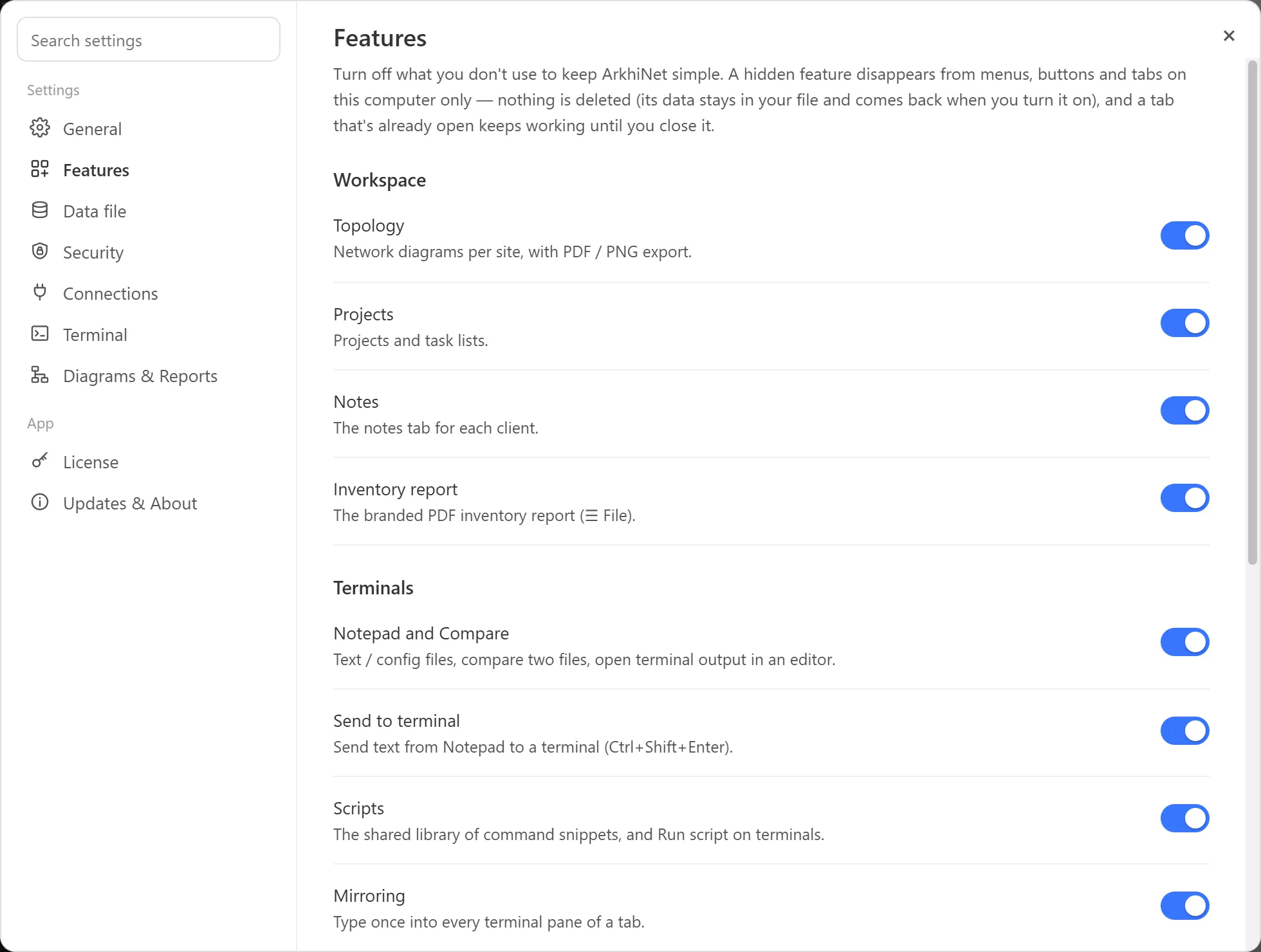
Section titled “Show or hide features”- Open Settings and go to Features.
- Turn off the switches for anything you don’t use.
| Group | Features |
|---|---|
| Workspace | Topology, Projects, Notes, Inventory report |
| Terminals | Notepad and Compare, Send to terminal, Scripts, Mirroring |
| Files | File Transfer, Quick transfer (SCP) |
| Tools | IP / DNS / MAC Lookup, Port / Net Scan, Subnet Calculator, MD5 Hash Checker |
A hidden feature’s tabs, buttons, menu items and shortcuts disappear on your PC. Nothing is deleted: topology layouts, projects, notes and scripts stay in the data file and come back when you switch the feature on again. A tab that’s already open keeps working until you close it.
Because the choice is per PC, hiding Projects on your laptop doesn’t hide it for anyone else who opens the same file.