Log terminal sessions
Session logging writes everything a session shows to a .log file, which is useful for change records, troubleshooting notes or proving what a device said during a maintenance window. You can log SSH, Telnet and Serial sessions, local shells and ping panes.
What gets logged
Section titled “What gets logged”- Output only. What you type is never recorded, so passwords don’t end up in the log. A device doesn’t echo a password, so it isn’t in the output either.
- Clean text. Color and cursor codes are removed, and paging prompts such as
--More--that a device draws and erases are left out. - The whole session. ArkhiNet writes output to the file as it arrives, so the log is complete even if the terminal’s scrollback has trimmed it. It keeps recording while ArkhiNet is locked.
Start and stop a log
Section titled “Start and stop a log”- Right-click the session’s tab or pane header, or open ☰, Session.
- Click Start logging. The option appears only while the session is live.
A red ● REC badge shows on the pane header and on the tab while it records. Hover the badge in the pane header to see the file path.
To stop, right-click again and click Stop logging. The finished log opens in a new Notepad tab. Later, Open log in Notepad on the same menu reopens it.
Where logs are saved
Section titled “Where logs are saved”Logs go to Documents\ArkhiNet Logs unless you choose another folder. Each file is named after the session plus the date and time it started, for example NWL-HQ-FW01 2026-10-17 14-32-05.log. If the name is taken, ArkhiNet adds (2), (3) and so on, so it never overwrites a log.
To change the folder:
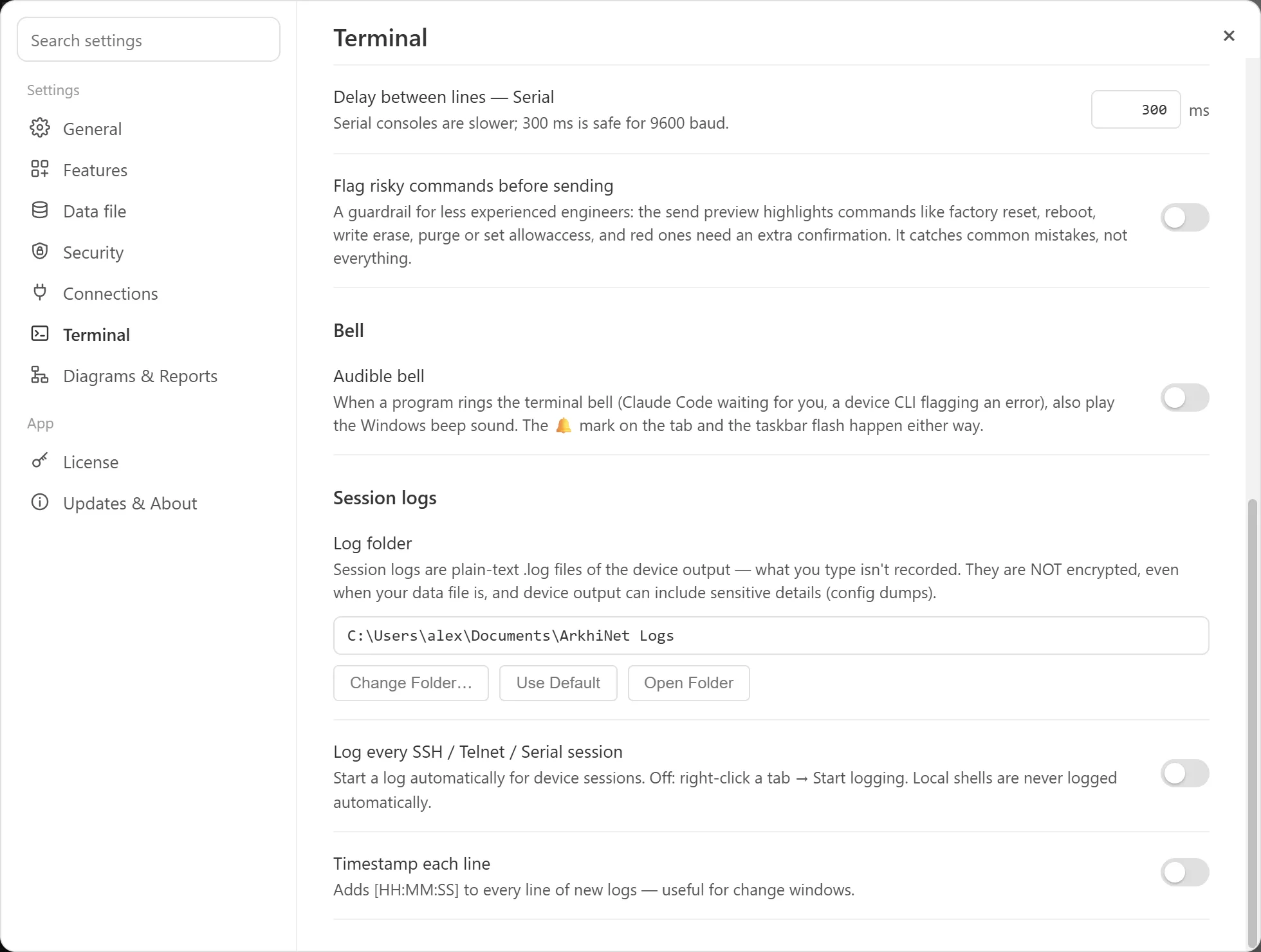
- Open Settings and click Terminal.
- Under Session logs, next to Log folder, click Change Folder… and pick a folder.
Use Default goes back to Documents\ArkhiNet Logs, and Open Folder opens the current folder in Explorer.
Add timestamps
Section titled “Add timestamps”- Open Settings, Terminal.
- Under Session logs, turn on Timestamp each line.
New logs then start each line with the time, such as [14:32:05]. Logs already recording keep their format.
Log every device session automatically
Section titled “Log every device session automatically”- Open Settings, Terminal.
- Under Session logs, turn on Log every SSH / Telnet / Serial session.
Every device session then starts logging as soon as it opens. Local shells are never logged automatically; start those by hand when you need them.