
How ArkhiNet handles credentials
ArkhiNet never stores passwords or keys. Not in the data file, not in its settings, not anywhere. This page explains that choice and the two small things it does keep to make logging in faster.
Why there are no saved passwords
Section titled “Why there are no saved passwords”A tool that opens connections to every firewall and switch you manage is a very attractive target. If it held a vault of device passwords, one stolen laptop, one leaked share or one compromised data file would hand over every client network at once. ArkhiNet removes that risk by never having the secrets in the first place.
In practice:
- When you connect over SSH or Telnet, you type the password in the terminal, at the device’s own prompt.
- The shared data file holds no login data at all, so sharing it with your team never shares credentials.
- Keep using your password manager for the passwords, and Pageant or ssh-agent for keys.
What ArkhiNet keeps on each computer
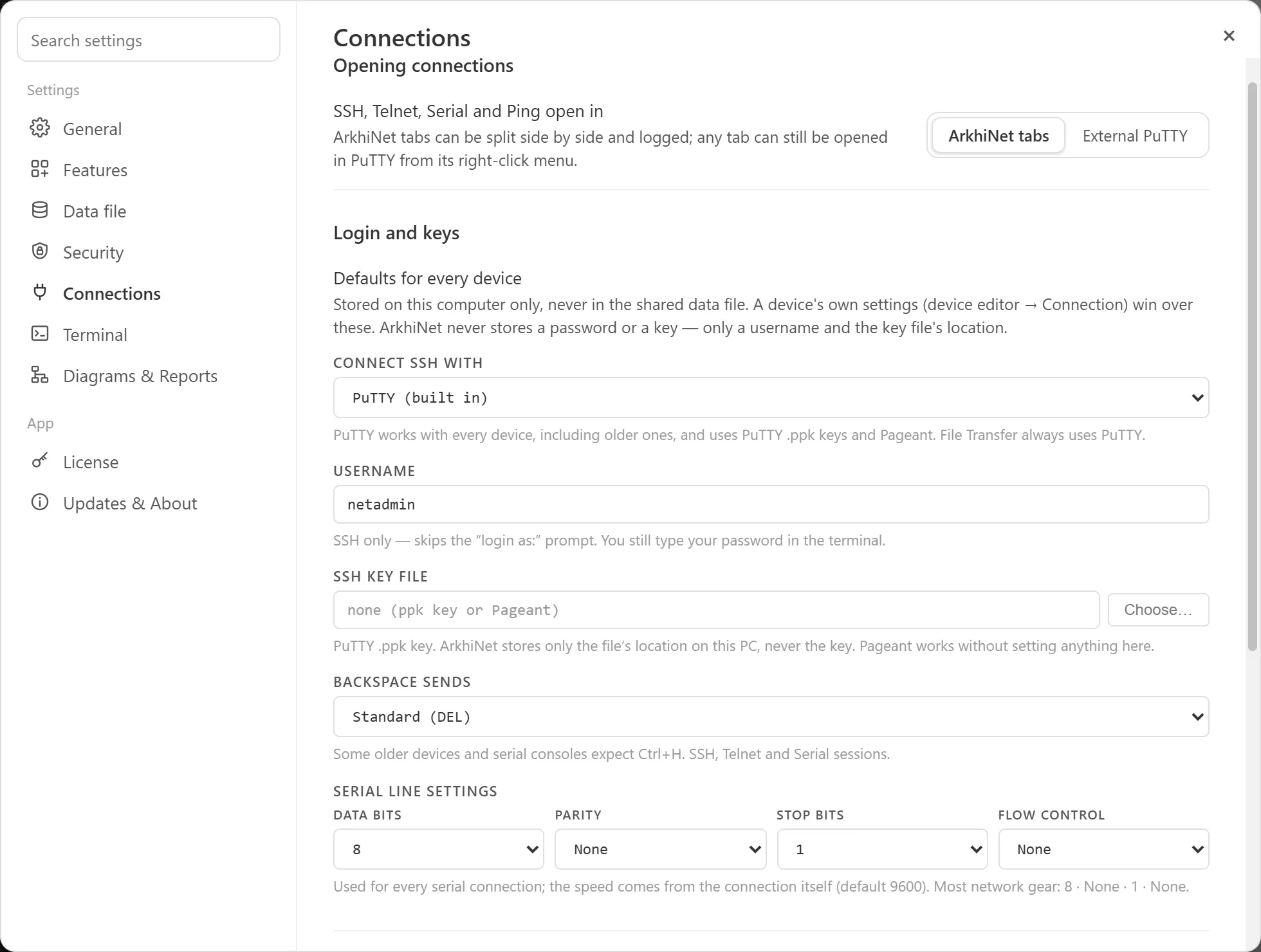
Section titled “What ArkhiNet keeps on each computer”To save you typing, ArkhiNet can remember two things that aren’t secrets. They’re stored in this computer’s settings (config.json), never in the shared data file, so each engineer sets their own.
| What | What it does |
|---|---|
| Username | Skips the login as: prompt for SSH. You still type your password in the terminal. |
| SSH key file | The location of a PuTTY .ppk key file. ArkhiNet stores only the file’s path on this computer, never the key. The SSH client reads the key itself when you log in. |
You can set these in two places:
- For every device: Settings (⚙ or Ctrl+,), then Connections. Under Login and keys, the Defaults for every device row has USERNAME and SSH KEY FILE fields.
- For one device: edit the device and open its CONNECTION section (marked “this computer”). A device’s own values win over the defaults. A blank field uses the default.
Step by step, with the other per-computer options such as BACKSPACE SENDS, is in Set connection options on this computer.
To set a key file, click Choose… and pick the .ppk file. Click Clear to remove it. The key file must be on a local or mapped drive, not a \\server\share path. If you pick an OpenSSH or PEM key, ArkhiNet tells you to convert it once in PuTTYgen.
OpenSSH sessions
Section titled “OpenSSH sessions”If Windows’ OpenSSH client is installed, CONNECT SSH WITH lets you choose OpenSSH (Windows) instead of PuTTY (built in). OpenSSH then uses your own ~/.ssh/config, your OpenSSH keys, ssh-agent and its own known_hosts list. ArkhiNet doesn’t store or read any of those secrets either.
Importers never import passwords
Section titled “Importers never import passwords”When you bring in sessions from PuTTY or SecureCRT, or devices from a CSV or Excel file (Settings, then Data file, then Import…), passwords are never imported:
- SecureCRT’s saved passwords aren’t read.
- A password or secret column in a CSV or Excel file is ignored, and the import preview warns you that it was.
- Usernames and key file paths come across as this computer’s connection options. A key path is kept only when ArkhiNet confirms it points to a usable
.ppkkey.
Other places credentials might end up
Section titled “Other places credentials might end up”ArkhiNet never stores passwords or keys, but some of your own files can contain secrets:
- Session logs record device output. A
show full-configurationcan include hashed passwords or pre-shared keys. Logs are plain text files, even when your data file is encrypted. - Notepad files and downloaded config backups are ordinary files on disk.
Treat those like any other config backup. See Encrypt your data file and lock the app for what encryption covers.