
Encrypt your data file and lock the app
Out of the box your data file is plain JSON, readable by anyone who can open the file. If it holds client networks you’d rather not leave lying on a share or a laptop, encrypt it. Encryption is optional and free for everyone. Once the file is encrypted you can also lock ArkhiNet when you step away.
How the encryption works
Section titled “How the encryption works”- Your inventory is encrypted with a random 256-bit data key using AES-256-GCM.
- The data key is never stored as is. The file carries copies of it wrapped (encrypted) under keys derived with scrypt from your passphrase and from a one-time recovery code.
- Changing your passphrase only re-wraps the data key, so it’s quick and your recovery code keeps working.
- An encrypted file uses the
.arkhinetextension instead of.json. ArkhiNet renames the file when you turn encryption on, and back to.jsonwhen you turn it off.
The scripts file next to your data file is encrypted with the same key (it becomes <name>.scripts.arkhinet). Your RECENT list and Find history for an encrypted file are sealed with that key too, instead of being kept in plain text on this computer.
Turn on encryption
Section titled “Turn on encryption”- Open Settings (⚙ or Ctrl+,) and click Security.
- Next to Encrypt the data file, click Encrypt….
- Type a passphrase of at least 8 characters, then type it again under Confirm passphrase.
- Read the warning, then tick the I understand checkbox below it.
- Click Encrypt.
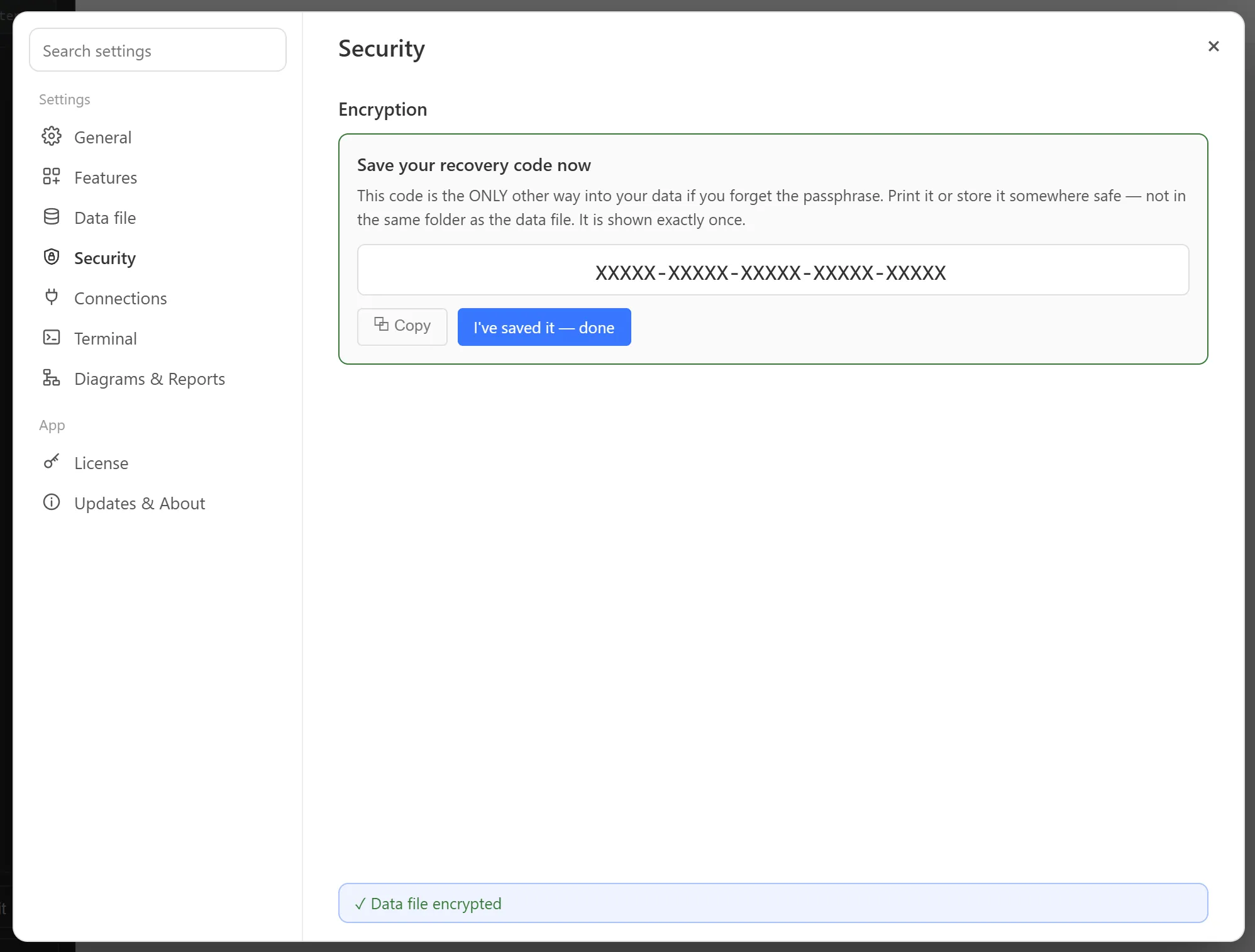
- ArkhiNet shows Save your recovery code now with a code in the form
XXXXX-XXXXX-XXXXX-XXXXX-XXXXX. Click ⧉ Copy or write it down, store it somewhere safe and away from the data file, then click I’ve saved it to finish.
Open an encrypted file
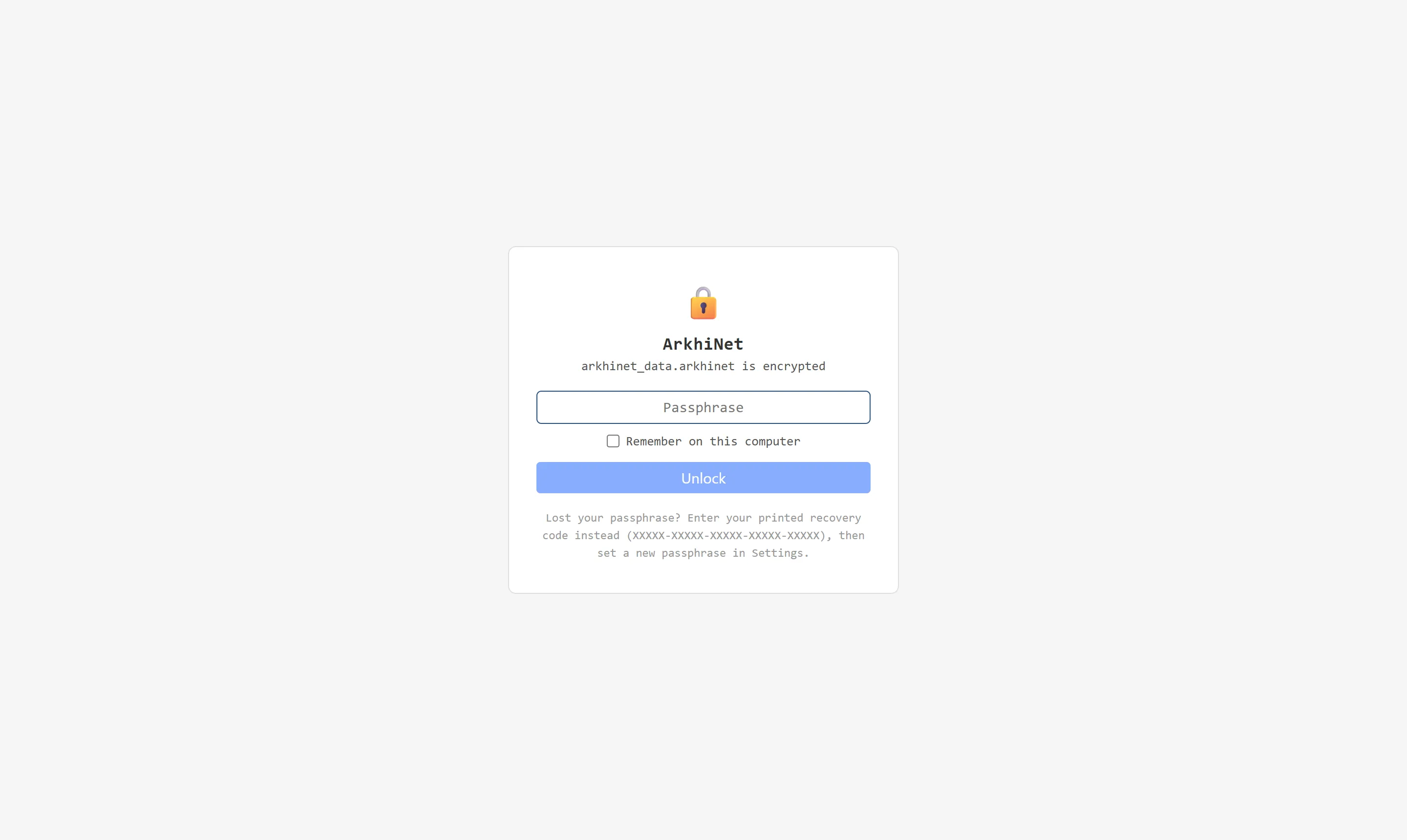
Section titled “Open an encrypted file”When ArkhiNet starts with an encrypted file, it shows a lock screen.
- Type your passphrase and click Unlock (or press Enter).
- Lost the passphrase? Type the recovery code in the same box instead. It forgives lowercase letters, missing dashes, and mixing up
0/Oor1/I/L. Then set a new passphrase in Settings.
Change the passphrase or remove encryption
Section titled “Change the passphrase or remove encryption”In Settings, Security:
- Change Passphrase… asks for the current passphrase and the new one twice. Your recovery code stays valid.
- Remove Encryption… asks for the passphrase, then writes the data back to disk as readable JSON.
Backups are copies of the file as it was, so each one needs the passphrase that was active when it was made. The recovery code opens all of them, because the data key never changes.
Lock ArkhiNet
Section titled “Lock ArkhiNet”The lock is available only while the data file is encrypted. Locking clears the key from memory and discards the open inventory, and you need the passphrase (or recovery code) to get back in.
- Lock now: click the 🔒 button at the right end of the tab strip, next to the window’s minimize button.
- Lock when idle: under Settings, Security, Lock, set Auto-lock when idle to a number of minutes and click Save. The default is 15 minutes, and 0 turns idle locking off.
ArkhiNet won’t lock while you have unsaved edits or a save conflict waiting for your answer. The idle lock simply tries again a little later.
Open terminal sessions keep running while the app is locked, but they’re hidden and take no input until you unlock. A session that’s being logged keeps logging.
Remember the passphrase on this computer
Section titled “Remember the passphrase on this computer”If you’d rather not type the passphrase at every launch, ArkhiNet can store it encrypted under your Windows account using Windows DPAPI.
- Tick Remember on this computer on the lock screen when you unlock, or
- In Settings, Security, click Remember… next to Remember on this computer, type the passphrase and click Save.
This only covers unlocking at launch. After a manual or idle lock, the passphrase is always required. Click Forget to remove it. ArkhiNet also forgets it when you change the passphrase, remove encryption or switch to another data file.
What encryption doesn’t cover
Section titled “What encryption doesn’t cover”These stay as plain files, even when your data file is encrypted:
- Exports: PDF inventory reports and topology PNG or PDF files.
- Files you open or save in Notepad.
- Session logs. Device output can include sensitive details such as config dumps.
- Files you download with File Transfer.
config.json, ArkhiNet’s per-computer settings file. See Where your data lives.