
Search the inventory
ArkhiNet has two ways to search: Global Search (Ctrl+G), which finds anything and can connect straight away, and the sidebar search box, which filters the tree. Both match every word you type, in any order, so northwind tacoma fw finds NWL-TAC-FW01 at Northwind Logistics › Tacoma Distribution Center.
Open Global Search
Section titled “Open Global Search”- Press Ctrl+G from anywhere in the app. Inside a terminal, plain Ctrl+G goes to the device, so press Ctrl+Shift+G instead.
- Start typing. Results update as you type.
- Do one of the following:
- Press Enter to connect to the top result.
- Click a result to open it on the Home tab, with its client, site and device selected.
- Hover a result to show its Launch Buttons and Ping, then click one.
- Press Esc (or Ctrl+G again) to close it.
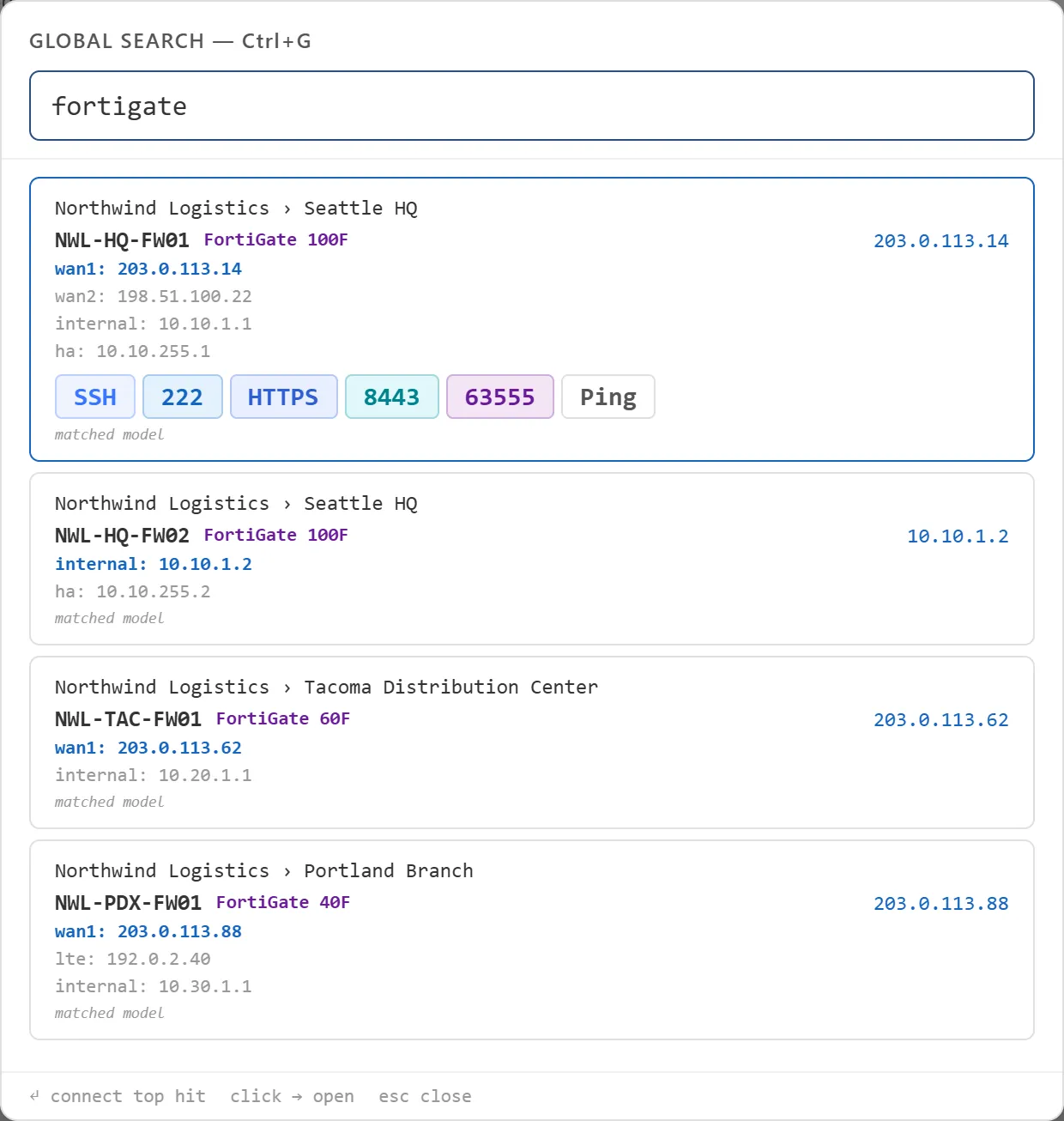
What Global Search looks at
Section titled “What Global Search looks at”A device matches when every word appears somewhere in:
- the client’s name and tags
- the site’s name and tags
- the device’s name, model, firmware, serial number, tags and notes
- its interface names and addresses
- its Fortinet End-of-Support date, for example
2027(only once the dates have loaded)
Clients with no sites and sites with no devices are found by name and tags too.
Each result shows the Client › Site path, the device name, model and firmware, and all of its interfaces with the targeted one highlighted. Small tags under the result say why it matched when that isn’t obvious, for example a tag, the serial number, an IP address, EoS: <date> or matched notes.
Client and site notes aren’t searched. Only device notes are.
Connect with Enter
Section titled “Connect with Enter”Enter connects to the top result, as long as it’s a device:
- Which interface: if one of your words is exactly an interface name, such as
port1ormgmt, that interface is used. Otherwise the device’s active IP is used. - Which protocol: the device’s first Launch Button, for example SSH.
- A different port: end the search with a port number, such as
cascade bellevue fw 443. If nothing matches the full text, ArkhiNet drops the number, finds the device, and uses the Launch Button with that port. With no such button, it picks the protocol from the port: 22 is SSH, 23 Telnet, 80, 8000 and 8080 HTTP, 3389 RDP, and anything else HTTPS.
SSH and Telnet open in an ArkhiNet tab (or PuTTY, if you’ve set SSH to open there); HTTPS and HTTP open your browser, and RDP opens Remote Desktop. The interface you connected through becomes the device’s active IP.
Filter the sidebar tree
Section titled “Filter the sidebar tree”The search box at the top of the sidebar filters the tree instead of opening a results list.
- Click the search box and type.
- The tree shows only matching clients, sites and devices, expanded so you can see them. A device that matched on one of its interfaces opens to show that interface.
- Press Enter to select the top match and show it on the Home tab. The filter stays in place.
- Clear the box to get the full tree back.
The sidebar filter matches client and site names and tags, device names, models, firmware and tags, and interface names, roles and addresses. It doesn’t look at serial numbers, notes or End-of-Support dates; use Global Search for those, and use Ctrl+G when you want Enter to connect.