
Work with tabs and split panes
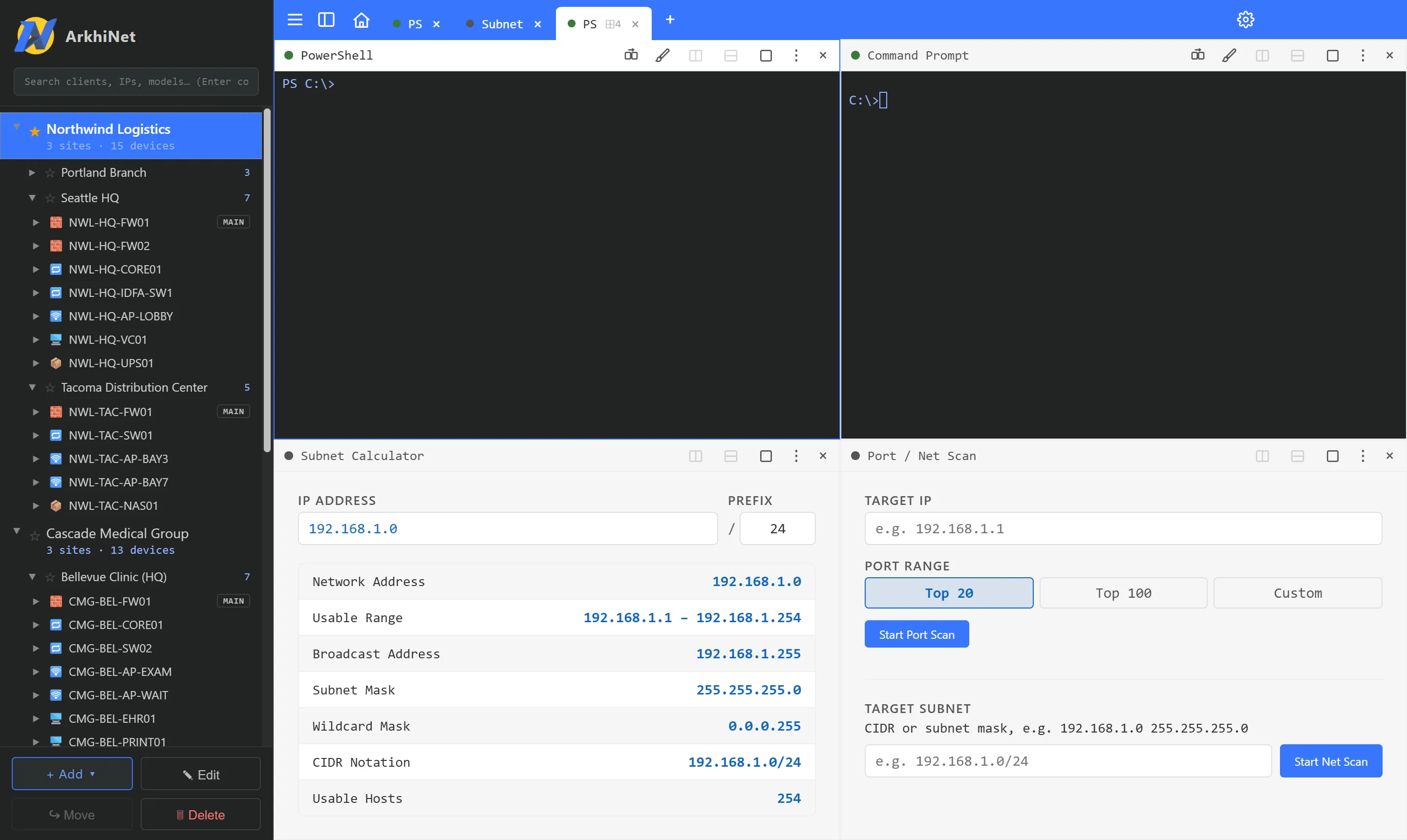
Every session, shell and tool opens in a tab in the strip across the top of the window. Each tab can hold up to four panes side by side, so you can watch a firewall and a switch at once, or keep a ping running under an SSH session.
The ⌂ Home tab, your inventory, is always first and can’t be closed.
Open a new tab
Section titled “Open a new tab”Click + at the end of the tab strip, or press Ctrl+T (Ctrl+Shift+T while you’re typing in a terminal). The tab opens on the new-tab screen.
Connecting from a Launch Button, the sidebar or global search opens the session in a tab too.
Split a pane
Section titled “Split a pane”Each pane has a header with its name, host and a row of buttons on the right.
- Click Split right or Split down in the pane header. You can also right-click the header and choose Split, then Right, Left, Down or Up.
- The new pane opens on the new-tab screen. Pick a session, shell or tool, or click ⧉ Duplicate to open another session to the same target.
A tab holds at most four panes. When it’s full, the split buttons are disabled. Drag the divider between panes to resize them.
To make one pane fill the tab for a moment, click Maximize pane or double-click its header. Do the same again to restore it.
Keyboard shortcuts for panes
Section titled “Keyboard shortcuts for panes”These work while a terminal pane has focus:
| Keys | Action |
|---|---|
| Alt+Shift+= | Split right |
| Alt+Shift+- | Split down |
| Alt+← → ↑ ↓ | Move to the pane in that direction |
The full list is under ☰, Help, Keyboard Shortcuts.
The tab menu
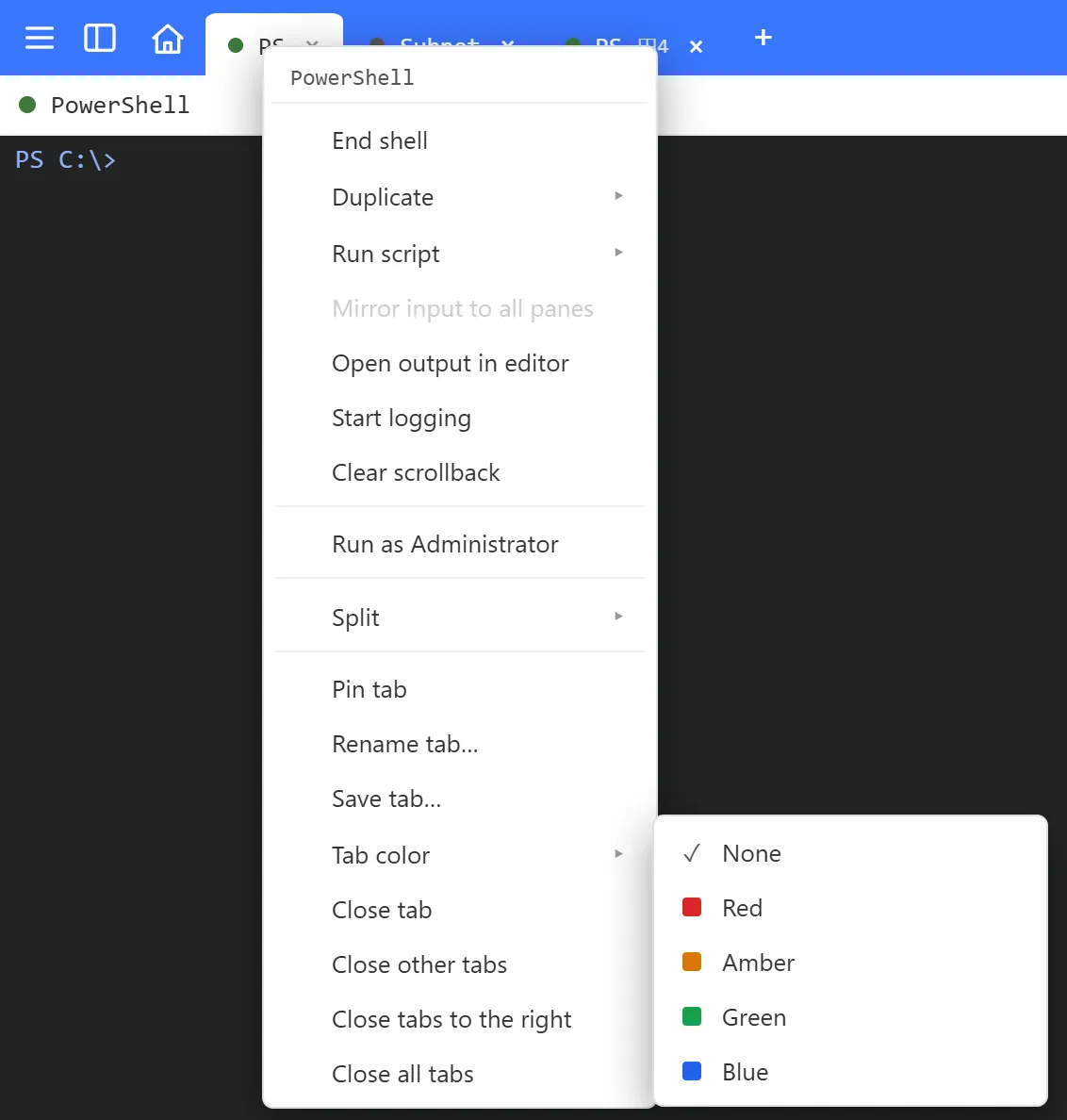
Section titled “The tab menu”Right-click a tab, or right-click a pane header, or click ⋮ in the header, to open the tab menu. Inside a terminal, use Shift+right-click, because a plain right-click pastes.
The top of the menu has the actions for that pane (disconnect, logging, scripts and so on). The bottom has the actions for the whole tab.
Pin a tab
Section titled “Pin a tab”- Right-click the tab and click Pin tab.
Pinned tabs move to the left of the strip and show a pin instead of the close button. Middle-click and the Close other tabs, Close tabs to the right and Close all tabs commands skip them. Click the pin, or choose Unpin tab, to unpin.
Rename a tab
Section titled “Rename a tab”- Right-click the tab and click Rename tab….
- Type a name, for example
Northwind core, and click Rename.
Leave the name empty to go back to the automatic name.
Color a tab
Section titled “Color a tab”- Right-click the tab and point to Tab color.
- Choose None, Red, Amber, Green or Blue.
The color shows as a stripe on the tab’s left edge. A common use is red for production, green for lab.
Close tabs and panes
Section titled “Close tabs and panes”- Close a pane: click × in the pane header, or choose Close pane from the menu.
- Close a tab: click × on the tab, middle-click it, or choose Close tab.
- Close several: choose Close other tabs, Close tabs to the right or Close all tabs. Pinned tabs stay open.
Sessions end with the window: when ArkhiNet closes, no plink or shell processes are left running.
The close guard
Section titled “The close guard”ArkhiNet asks before it ends live work:
- When you close several tabs at once and any of them have live sessions, a Close tabs dialog says how many sessions will end.
- When you close ArkhiNet with sessions still open, it lists how many are open and asks you to confirm with Close ArkhiNet.
- Unsaved Notepad files always ask before they’re closed.