
Open local shells
Local shells run on your own computer inside ArkhiNet tabs, so you can keep a PowerShell prompt beside your SSH sessions, split it, log it and send scripts to it like any other terminal.
Open a shell
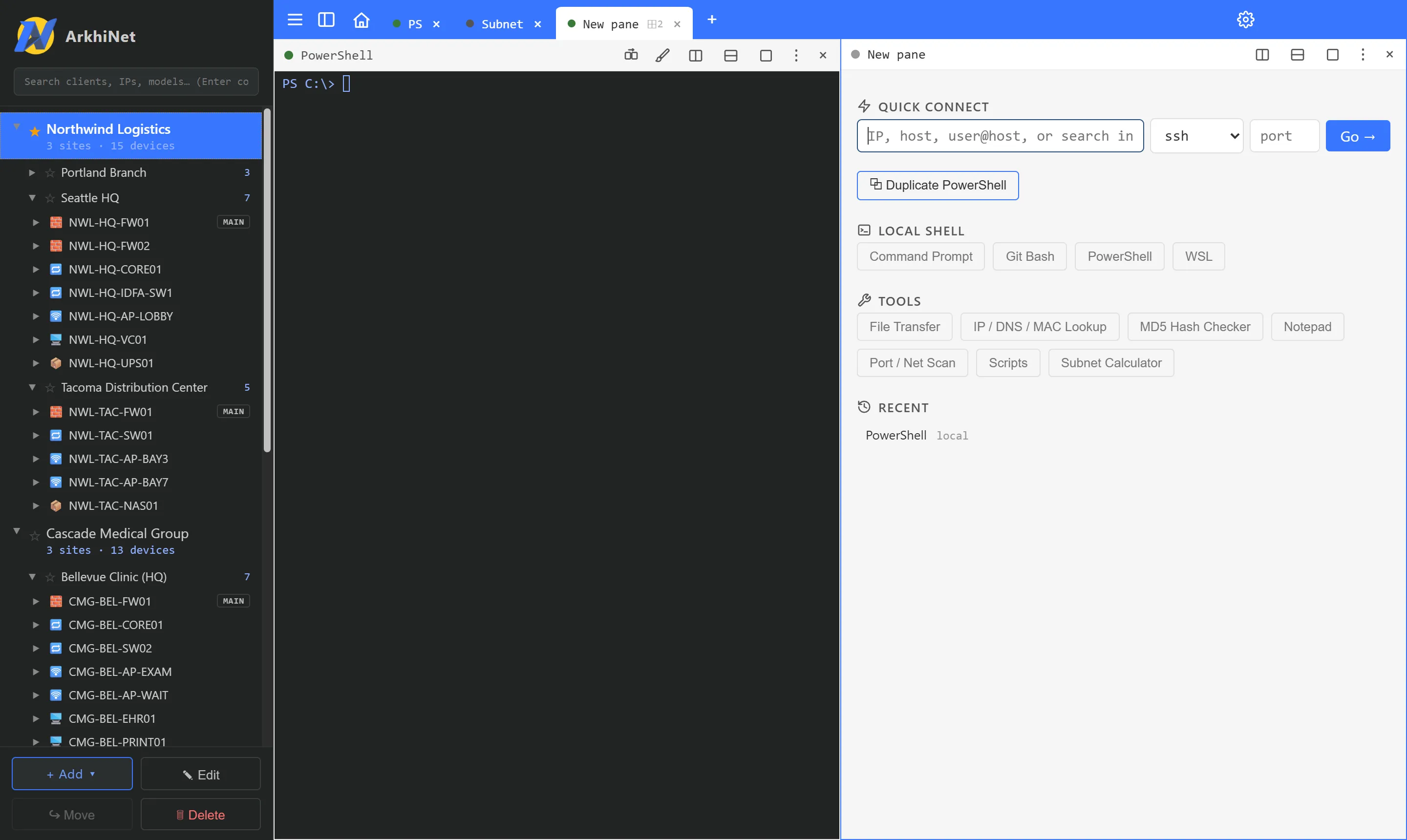
Section titled “Open a shell”- Click + or press Ctrl+T to open the new-tab screen. To open it in a split pane instead, split an existing pane first.
- Under LOCAL SHELL, click the shell you want.
The shells on offer:
| Button | Shown |
|---|---|
| PowerShell | Always (Windows PowerShell). |
| Command Prompt | Always. |
| PowerShell 7 | When PowerShell 7 is installed. |
| Git Bash | When Git for Windows is installed. |
| WSL | When WSL has at least one Linux distribution installed. |
In the tab strip, shells get short names such as PS, cmd, PS7, bash and WSL. The pane header shows the full name.
How shells behave
Section titled “How shells behave”- A shell starts with your own Windows environment, including variables you’ve set permanently since ArkhiNet started.
- Ctrl+click a link in the output to open it.
- Shift+Enter sends a newline without running the line, for tools that use it. This applies to local shells only.
- When a program rings the terminal bell, a bell mark appears on the tab and the taskbar button flashes. Turn on Audible bell in Settings, Terminal to hear it too.
- Clipboard works as in PuTTY: selecting text copies it, right-click pastes, and pasting several lines asks first. You can change all three in Settings, Terminal.
To end a shell, right-click its tab and click End shell. Restart shell starts it again in the same pane.
Restart as administrator
Section titled “Restart as administrator”Windows can’t give one tab administrator rights inside a normal app, so ArkhiNet restarts as a whole with elevation.
- Right-click a local shell’s tab or pane header and click Run as Administrator. You can also use ☰, File, Run as Administrator.
- Read the dialog. It lists any sessions that will end. If you have unsaved Notepad files, save or close them first; ArkhiNet won’t discard them.
- Click Restart ArkhiNet and approve the Windows UAC prompt.
ArkhiNet closes and reopens elevated. Every tab, shells and SSH alike, now runs as administrator, and the title bar shows an Administrator badge. If you cancel the UAC prompt, nothing closes.
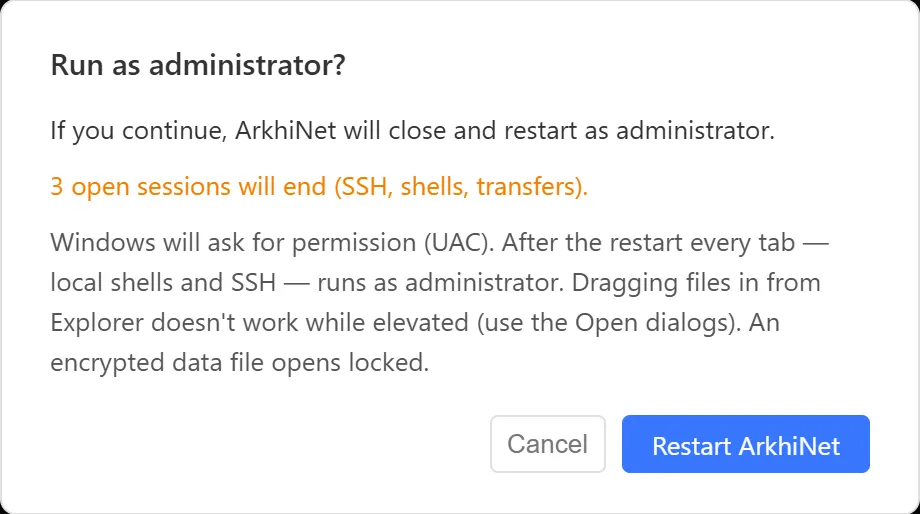
While elevated, dragging files in from Explorer doesn’t work; use the Open dialogs. An encrypted data file opens locked after the restart.
To go back, click the Administrator badge, or choose Stop Running as Administrator from the same menus. ArkhiNet restarts without administrator rights.